
For: Dispatchers & Service Managers · Permission: Manage appointments · Time: ~3 minutes
Who this is forDispatchers handling the lifecycle of a PM appointment after it's been requested or booked.
What you'll learnHow to open an appointment, and how to confirm, decline, reschedule, cancel, or assign a technician — plus what changes as the status moves along.
Before you start- You'll need: An appointment to manage. Open it from the Service Workspace (calendar or list).
- Status drives the buttons: A Requested appointment shows Confirm / Decline; a Confirmed one shows Reschedule / Cancel and arrival.
Click an appointment in the workspace to open it. You'll see its status, the service details, the (locked) vehicle and customer, technician assignment, reschedule controls, and the vehicles on the visit.
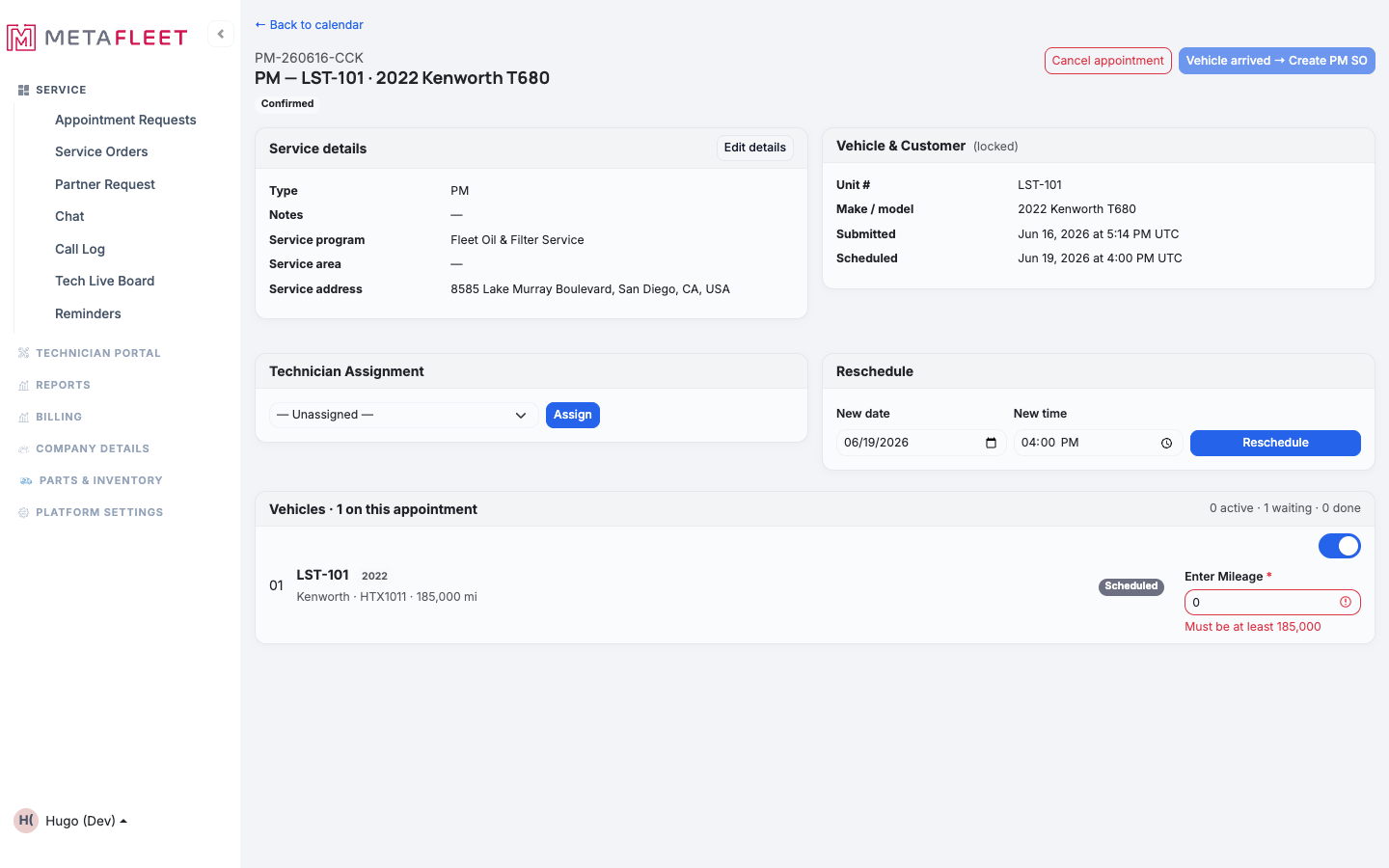
A Confirmed appointment — Reschedule and Cancel are available, plus Assign technician and "Vehicle arrived → Create PM SO" when they show up.
The actions, by statusConfirm or decline a request.
When an appointment is Requested (often from a customer), open it and click Confirm to lock it in, or Decline with a reason if you can't take it. Confirming moves it onto the schedule.
Reschedule.
In the Reschedule panel, set a new date and new time, then click Reschedule. The visit moves on the calendar and the customer is notified.
Assign a technician.
Use Technician Assignment to pick a tech and click Assign — so the right person owns the visit.
Cancel.
Click Cancel appointment to call off the visit. It moves to Cancelled and frees the slot.
When the vehicle shows up, use Vehicle arrived → Create PM SO to turn the appointment into a service order and start the work. See Record Arrival & Start Service.Troubleshooting
| Symptom | Likely cause | Fix |
|---|---|---|
| I don't see Confirm/Decline | The appointment is already Confirmed | Those appear only while it's Requested — use Reschedule/Cancel instead. |
| Reschedule won't save | Missing new date or time | Set both fields, then click Reschedule. |
| Vehicle / customer fields are greyed out | They're locked after booking | That's by design — edit Service details, not the vehicle/customer, here. |
| "Vehicle arrived" is blocked | Mileage not entered / below the floor | Enter the current mileage (it must meet the minimum) before creating the PM SO. |
Why do the buttons differ between appointments?
Actions are status-driven: Requested shows Confirm/Decline; Confirmed shows Reschedule/Cancel and arrival.
Does rescheduling notify the customer?
Yes — the new time is communicated as part of the PM notifications (see PM-Due Notifications & Reminders).
Can I assign a technician later?
Yes — assign or change the technician any time from the detail page.