
Who this is for
Dispatchers, managers, and admins who want tighter control over what gets worked, estimated, and invoiced by requiring approvals at key points.
What you’ll learn
• Where Approval Options live inside Workflow Settings
• What each approval toggle does (dispatcher, manager, customer)
• What changes for technicians when approvals are On vs Off
Why it matters
Approvals prevent surprise billing, missed authorizations, and work that shouldn’t happen. When used correctly, they protect margin, reduce disputes, and keep customers in the loop.
Before you start
• You may need admin/manager permissions to edit Workflow Settings.
• Align internally on who approves what (dispatcher vs manager) and how fast approvals should happen.
• If you require customer consent, make sure your customer knows what to expect and how to approve work items and invoices.
Quick Summary (TL;DR)
-
Go to Platform Settings.
-
Go to Account Settings.
-
Go to Workflow Settings.
-
Find Approval Options.
-
Turn On the approvals you want (dispatcher / manager / customer).
-
Click Save.
-
Tell the team what’s now required and who owns each approval.
Step-by-Step
-
Open Workflow Settings.
Go to Platform Settings -> Account Details -> Workflow Settings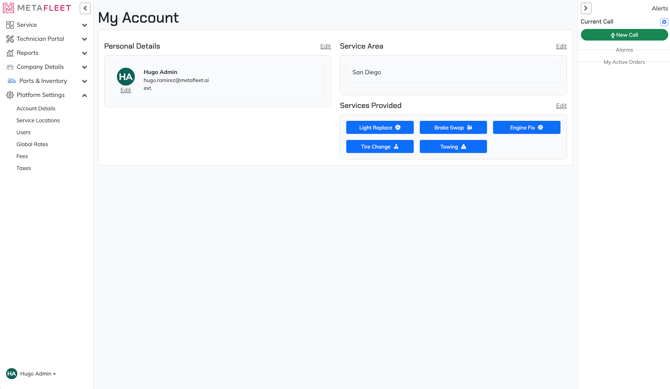
-
Find the Approval Options section.
Expected result: You see toggles like:
• Required dispatcher approval for work items
• Required dispatcher approval for repairs
• Require manager approval for estimates
• Require manager approval for invoices
• Require customer consent for work items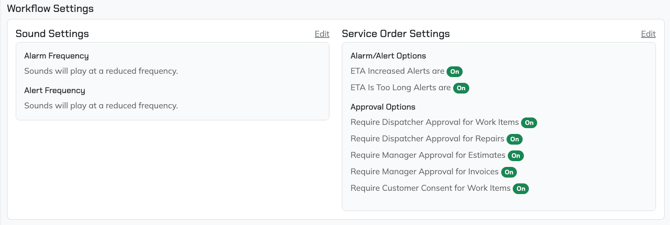
Set “Required dispatcher approval for work items.”
What it means: Work items (diagnosis items) must be approved before the technician can proceed.
Technician flow: Tech diagnoses → submits work items for approval → waits for dispatcher approval → proceeds after approval.
When Off: Tech can move straight from diagnosis into work without waiting
Tip: Turn this On if you want dispatch to sanity-check scope and cost before repairs start.
Set “Required dispatcher approval for repairs.”
What it means: Repairs must be approved by a dispatcher before the technician can be “released” from the job (or move past the repair checkpoint).
When Off: Tech can proceed without dispatcher approval at that point.
Set “Require manager approval for estimates.”
What it means: Dispatcher must send the estimate for manager approval before the estimate can be sent to the customer.
Note: This is useful when you want a manager to control price, margin, or risk before an estimate goes out.
Set “Require manager approval for invoices.”
What it means: Dispatcher must send the invoice for manager approval before the invoice can be submitted/sent to the customer.
Warning: If you enable manager approval for invoices, make sure someone is assigned to approve daily or invoicing will back up.
Set “Require customer consent for work items.”
What it means: As the technician builds diagnosis work items and submits them, the customer must approve those work items too.
When Off: Customer approval is not required at that stage.
Save changes and communicate the new workflow.
Click Save or Submit.
Expected result: Your toggles stay in the chosen On/Off state after saving.
[add screenshot: approval-options-saved.png, capture: Approval Options section after saving, annotate: highlight the toggles and their states, caption: Confirm approval settings saved.]
Troubleshooting:
| Symptom | Likely Cause | Fix | Prevent |
|---|---|---|---|
| Technicians say they “can’t move forward” | An approval toggle is On and they’re waiting on dispatcher/manager/customer | Identify which approval is blocking (work items vs repairs vs estimate vs invoice vs customer consent) and complete the required approval | Assign an owner and response time for approvals (example: dispatcher checks approvals every 30 minutes) |
| Approvals are enabled but nothing gets approved | No one is assigned to approve, or approvers aren’t noticing notifications | Confirm who is responsible for each approval type and verify their Sound Settings + Alarm/Alert Options are not silenced | Create a daily approvals routine (start of day, mid-day, end of day) |
| Customer consent is required but customers aren’t responding | Customer approval channel isn’t set up, contact info is wrong, or customer isn’t seeing the request | Verify customer contact info and confirm the approval method (Portal/SMS/Email) is working | Confirm customer contact details during intake and tell the customer approvals are required before work starts |
| Dispatcher approval is On but dispatch can’t find where to approve | Approval queue/location isn’t known or the user lacks access | Go to the Service Order and select " | Add “Where to approve” to dispatcher onboarding and include a screenshot of the approvals queue |
FAQs
Q: If dispatcher approval for work items is Off, can tech go straight to work?
A: Yes. When it’s Off, technicians can proceed without waiting for dispatcher approval.
Q: What’s the difference between dispatcher approval and manager approval?
A: Dispatcher approval is usually operational control (flow, scheduling, scope). Manager approval is higher-level control (pricing, margin, risk). Your shop can decide how to use each.
Q: Do I need both manager approval for estimates and invoices?
A: Not always. Some shops only require manager approval on invoices (or only on estimates) depending on how they operate.
Q: What happens when customer consent is required for work items?
A: Work items must be approved by the customer before the workflow can proceed past that point.
Related Articles