
For: Technicians & Service Managers · Permission: Service / technician · Time: Varies with the program
Who this is forThe technician (or service manager) doing the actual PM — turning a started service order into completed, documented work.
What you'll learnHow to use the PM Board to mark tasks done, capture parts and photos, and complete (or abandon) a vehicle's service.
Before you start- You'll need: A PM service order that's in progress (see Record Arrival & Start Service).
- Where it lives: The PM Board tab on the service page — one board per vehicle on the visit.
Quick summary
- Open the vehicle's PM Board.
- Tap each service task to mark it done; add any extra parts and photos.
- Enter the exit mileage, then click Complete Vehicle Service.
Each vehicle on the visit gets its own board, showing the program, the entry mileage, and a place for photos and videos as proof of work.
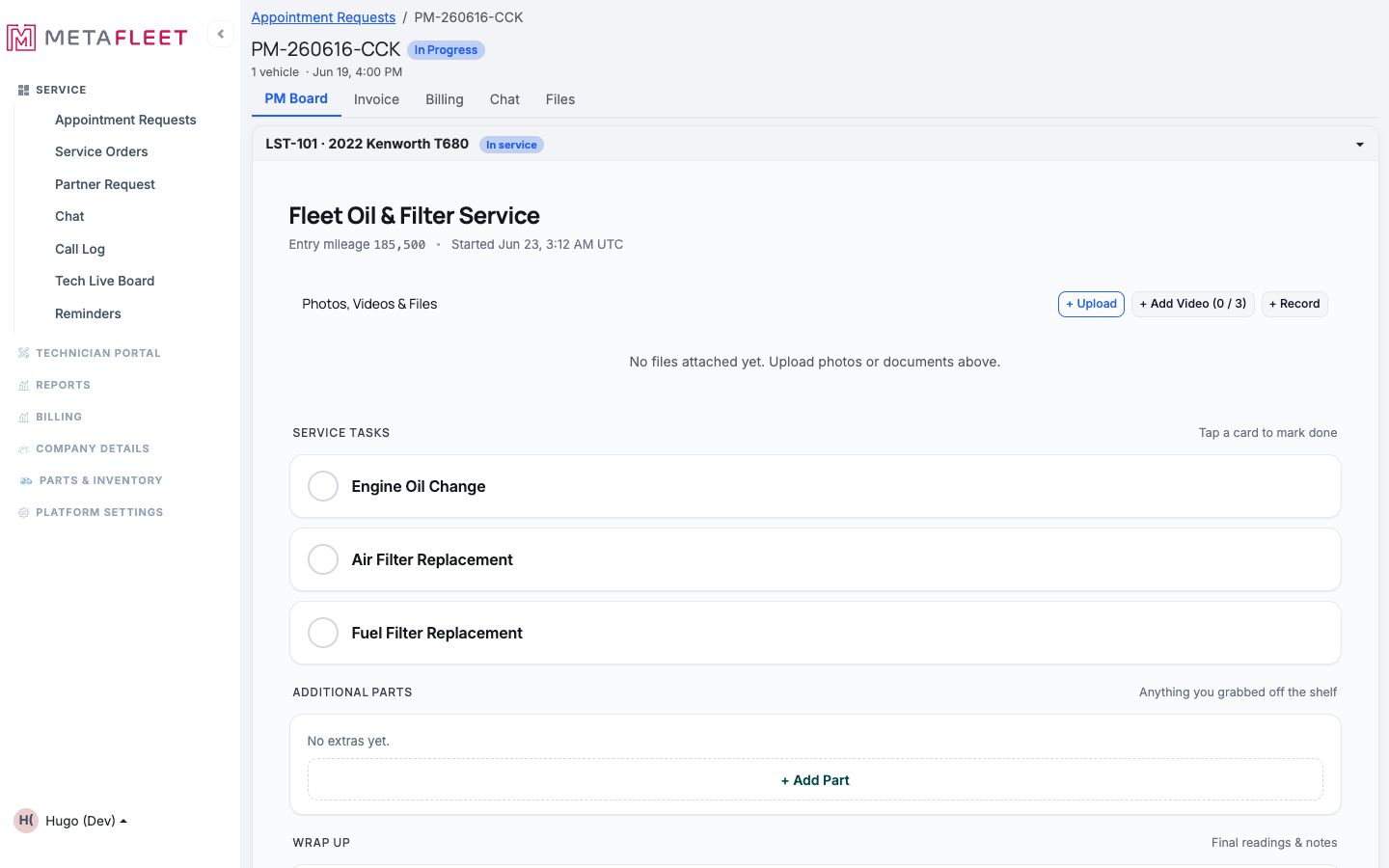
The PM Board — the program's tasks, ready to work, with photo/video capture at the top.
Step-by-stepMark each service task done.
The program's tasks appear as cards — tap a card to mark it done. The footer tracks your progress ("0 of 3 tasks resolved").
Add any extra parts and photos.
Grabbed something off the shelf that wasn't in the program? Use + Add Part under Additional parts. Attach photos or videos as proof of work from the top of the board.
Record the exit mileage.
In Wrap up, enter the exit mileage (it must meet the entry reading) and add any notes.
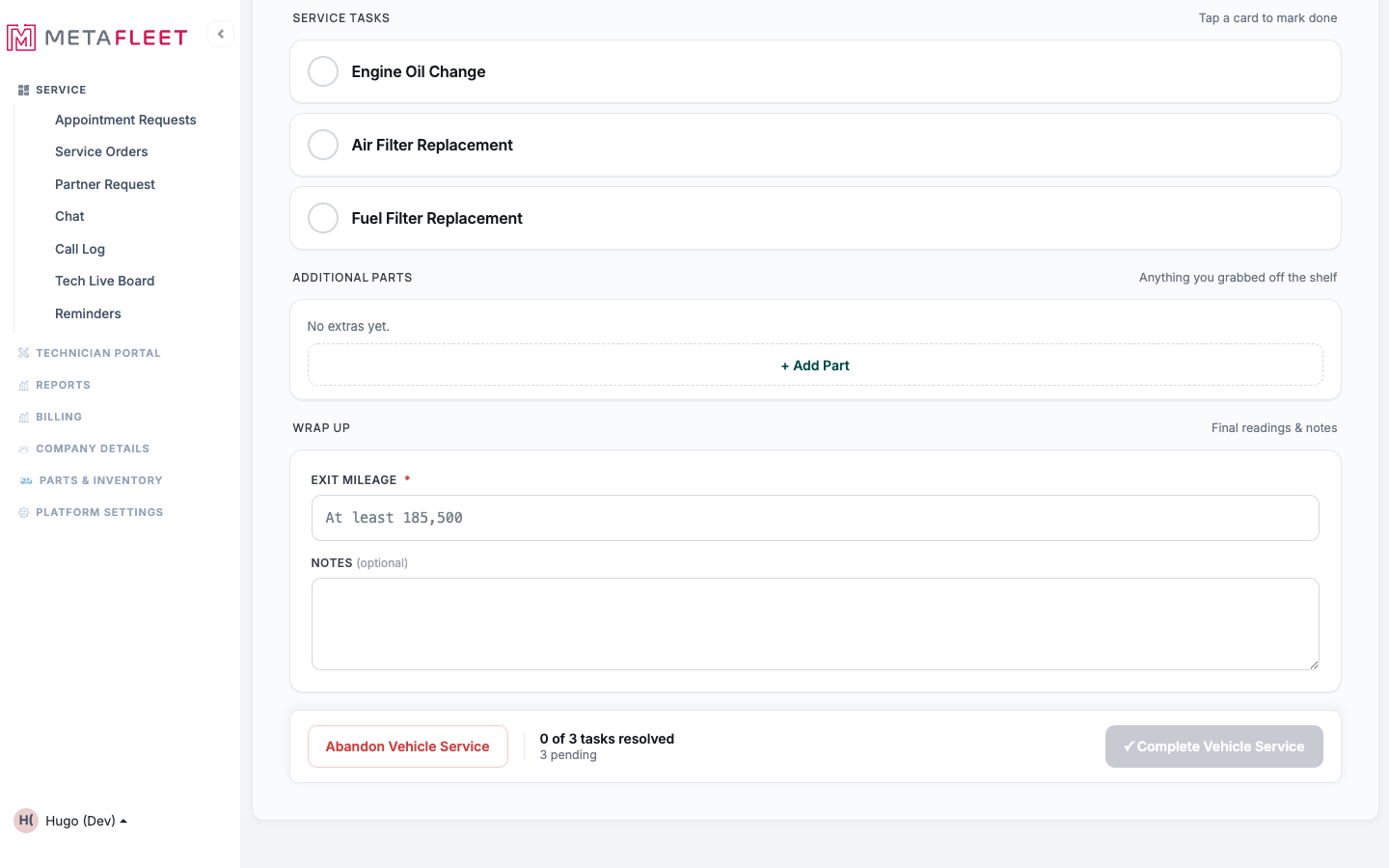
Tasks, parts, and wrap-up. Complete Vehicle Service turns on once every task is resolved and the exit mileage is in.
Complete the service.
When all tasks are resolved and the exit mileage is entered, click ✓ Complete Vehicle Service. The vehicle moves to done and (with all vehicles complete) the visit is ready to invoice.
Can't finish? Use Abandon Vehicle Service to stop work on a vehicle (e.g. a part isn't available) without completing it — the rest of the visit can still proceed.Troubleshooting
| Symptom | Likely cause | Fix |
|---|---|---|
| "Complete Vehicle Service" is greyed out | Tasks still pending or exit mileage missing | Resolve every task and enter the exit mileage — the counter shows what's left. |
| Exit mileage won't accept my number | It's below the entry mileage | The exit reading can't be lower than entry — re-check the odometer. |
| A needed part isn't on the program | It's an extra for this visit | Add it under Additional parts. |
How do I mark a task complete?
Tap its card on the PM Board. Tap again to undo if needed.
What happens after I complete all vehicles?
The visit is ready to invoice — parts and labor flow to the PM invoice (see PM Invoicing).
What if I can't complete a vehicle?
Abandon its service; you can reschedule the remaining work.