
For: Owners and admins · Permission: Manage account settings · Time: ~5 minutes
Quick summary
- On Step 1 of 3 · What should sync?, switch each kind of record on or off, then click Continue.
- On Step 2 of 3 · Choose what syncs, untick any customer, part or vendor you don't want to sync.
- Click Save and continue on each picker. You finish setup on the posting accounts step.
- Later, change any kind under What syncs on the QuickBooks Settings tab in Settings › Integrations.
Before you start
- You have connected QuickBooks Online. If not, start with Connect QuickBooks Online to MetaFleet.
- Your role has the Manage account settings permission. Without it, the switches are grayed out and you can only look.
- Nothing moves until you choose. Anything you leave off stays off, and its rows stay out of Posting accounts.
Step 1: Switch each kind of record on or off
After you connect, setup opens on Step 1 of 3 · What should sync? It lists each kind of record, what it is in QuickBooks, and which way it travels. Every kind starts on. Two way means changes travel both ways. Use the Sync it switch to turn off the ones you don't want.
| Object | Direction | What that means |
|---|---|---|
| Customers | Two way | Changes travel both ways between MetaFleet and QuickBooks. |
| Parts | Two way | Parts match QuickBooks items. Changes travel both ways. |
| Vendors | Two way | Changes travel both ways. |
| Invoices | Push | MetaFleet sends them to QuickBooks. Nothing comes back as a new invoice. |
| Payments | Two way | Payments travel both ways. |
| Purchase Orders | Both | MetaFleet sends them, including in the nightly sync. The balance is pulled back from QuickBooks. |
| Bills & Expenses | Push | MetaFleet sends them to QuickBooks. |
| Chart of Accounts | Pull | Always read from QuickBooks. It shows Required instead of a switch. |
The In QuickBooks column shows how many customers, items and vendors your QuickBooks company already has, and a short note for the other rows. The line under the table reads Syncing N of 7 objects and lists what is off.
Click Continue. It stays grayed out while all seven switches are off. Don't click Cancel to go back: it disconnects QuickBooks (see Connect QuickBooks Online to MetaFleet).
For timing and the full mapping, see How MetaFleet and QuickBooks Work Together.
Step 2: Choose which customers, parts and vendors sync
For each of Customers, Parts and Vendors that you left on, MetaFleet shows a picker titled Step 2 of 3 · Choose what syncs. It first says Loading records from QuickBooks…, then lists the records.
Everything starts ticked. Untick what you don't want.
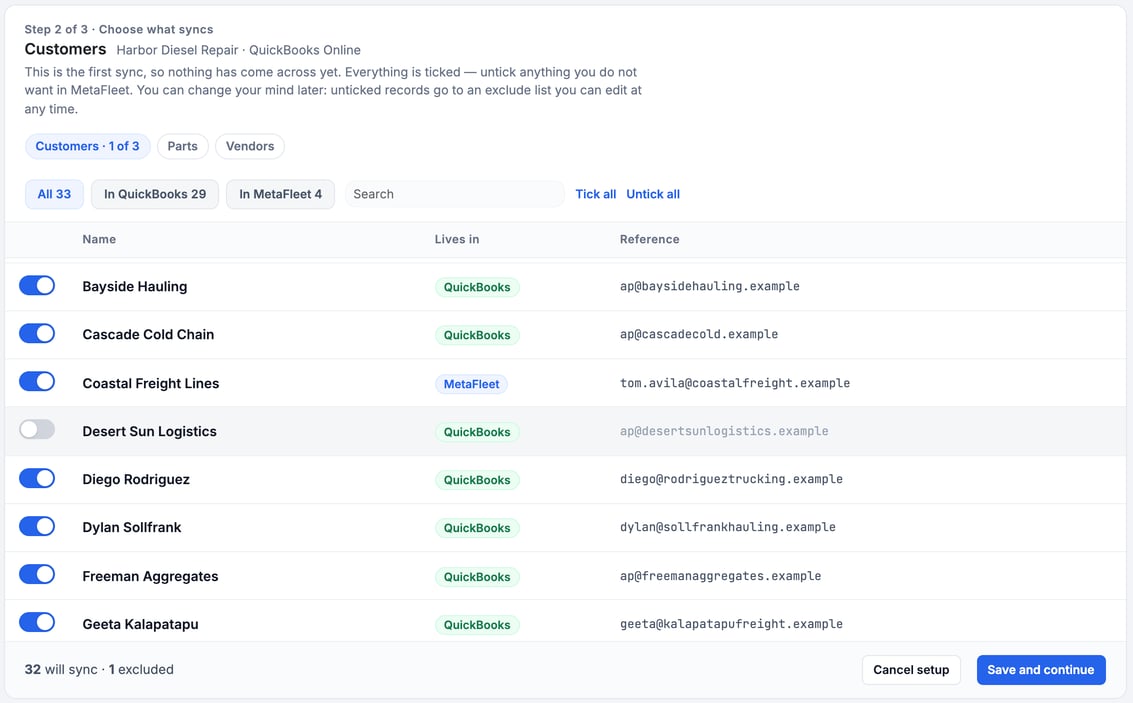
- Find records. Use the search box, or the All, In QuickBooks and In MetaFleet filters, which each show a count. The Lives in column shows whether a record is in QuickBooks or MetaFleet, and Reference shows its email or other reference.
- Tick or untick. Use the boxes, or Tick all and Untick all.
- Narrow parts by category. The Parts picker has category buttons, including All categories and Ungrouped.
- Check the count. The footer reads N will sync · N excluded.
- Save. Click Save and continue. On the last picker the button reads Save and continue to accounts.
Unticking deletes nothing. An unticked record goes to the exclude list. It is never synced, in either direction, until you include it again. Records that already synced stay in MetaFleet.
Don't click Cancel setup on a picker unless you mean to leave. It asks Cancel setup and disconnect?; click Keep setting up to stay.
After the pickers, you choose where your money posts. See Choose Where Your Money Posts in QuickBooks.
Include an excluded record again
- Go to Settings › Integrations, open the QuickBooks tab, then its Sync tab.
- Below the rows, click Show excluded records. It appears once at least one record is excluded.
- Filter by kind if you want, then click Include again on the record.
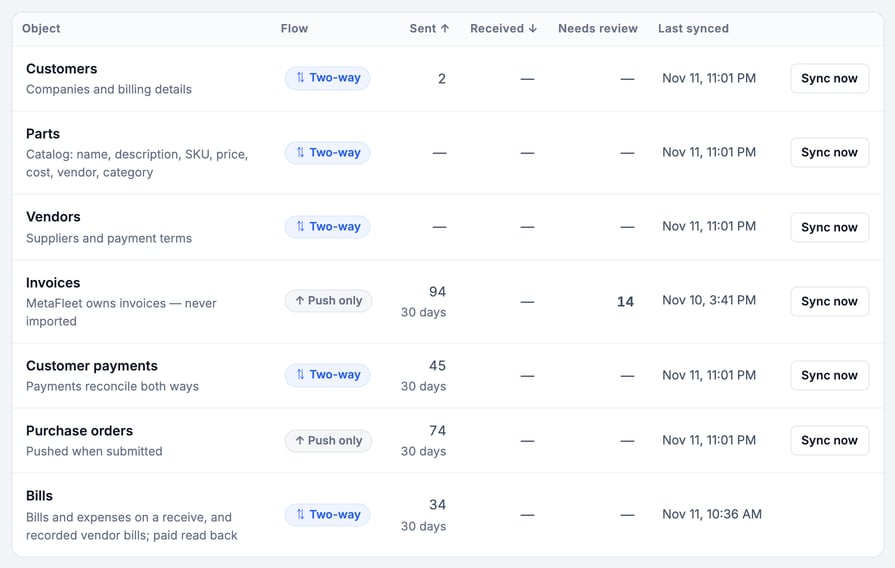
Including a record does not sync it right away. It goes with the next sync of that kind. For the link between a MetaFleet customer and a QuickBooks one, see Link a Customer to QuickBooks.
Turn a kind off or back on later
- Go to Settings › Integrations, open the QuickBooks tab, then its Settings tab.
- Under What syncs, flip the switch for the kind. It saves as you flip it.
- Read the line that appears under the table. It says which Posting accounts rows come or go and what happens to the records.
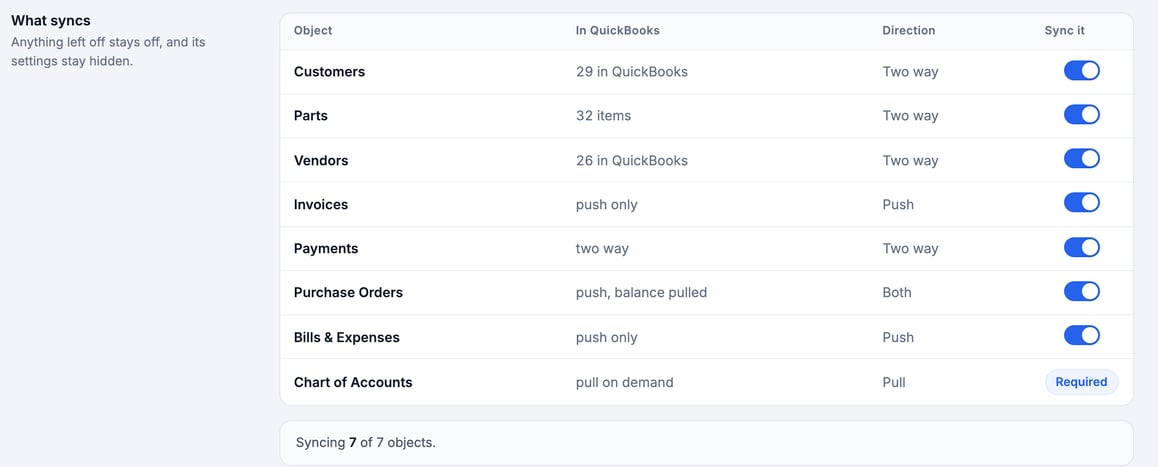
What a switch does:
- Off: that kind stops syncing everywhere, including nightly sync, Sync now and the sends that happen as you work. Its row on the Sync tab reads Off with a Turn on in Settings link.
- Invoices held by MetaFleet: on a company that uses Automated Sales Tax, MetaFleet staff can hold invoices back from QuickBooks. The QuickBooks card then shows Invoices aren't going to QuickBooks. You can't change this setting yourself. Invoices you send while they're held stay out of QuickBooks, even after MetaFleet turns posting back on.
- Invoices and Sync now: Sync now never sends invoices that were left out at setup, or billed before your start date. On Automated Sales Tax, it also skips invoices MetaFleet taxed. It tries only invoices you have sent.
- Parts on a plan without inventory: if your QuickBooks plan has no inventory items, the Parts row on the Sync tab reads Parts don't sync: this QuickBooks plan has no inventory items.
- Sent while off: invoices, payments, purchase orders and bills made while the kind is off wait. They go to QuickBooks once you turn the kind back on. Nothing is dropped.
- Two-way kinds: payments and purchase orders also stop coming back from QuickBooks while off.
- Posting accounts: rows for an off kind leave Posting accounts and return when you turn it on.
- Turning on a kind you never chose records for: its picker opens first. The save button names the kind, for example Save and turn on Customers. The cancel button on that picker leaves the kind off. Until you choose, the Sync tab shows Not chosen yet.
Once setup is finished, the Settings tab also has a Customer payments section. Its Customers pay through QuickBooks switch lets invoice emails set to QuickBooks Pay Link carry a Pay button that opens QuickBooks' payment page. It stays off until QuickBooks Payments is on in that QuickBooks company, and it isn't offered while invoices are held.
Troubleshooting
| Symptom | Likely cause | Fix |
|---|---|---|
| The switches are grayed out | Your role lacks Manage account settings. The card says it is view only. | Ask an admin with that permission, or have it added to your role. |
| Continue is grayed out | All seven switches are off. | Turn on at least one kind. |
| A switch flips back and an error shows | The change didn't save. | Flip it again. If it keeps failing, contact MetaFleet support. |
| The picker shows an error instead of records | MetaFleet couldn't read the list from QuickBooks. | Click Try again. |
| A record you included again isn't in QuickBooks yet | Including doesn't sync right away. | Wait for the next sync of that kind. |
| A kind shows Off and its records aren't moving | The kind is switched off. | Click Turn on in Settings and flip the switch. |
Other sync problems are covered in Fix What Needs Attention in QuickBooks.
FAQs
Does unticking a record delete it?
No. It stays where it is in MetaFleet and in QuickBooks. It just stops syncing until you include it again.
Can I change my choices after setup?
Yes. Flip kinds on or off under What syncs on the Settings tab, and use Include again for single records.
Why can't I turn off Chart of Accounts?
MetaFleet always reads it from QuickBooks, so it has no switch.
What happens to an invoice I send while Invoices is off?
It waits. When you turn Invoices back on, it goes to QuickBooks, unless MetaFleet is holding invoices (see above).
Which accounts do the posting rows use?
Ask your accountant which account to use. Then see Choose Where Your Money Posts in QuickBooks.