
Technicians who need to record a vehicle's VIN, license plate, mileage, asset tag, or damage while they're with the truck.
What you'll learnHow to take vehicle info photos, how the app reads VIN/plate/odometer automatically, what to do when a photo won't read, and where these photos go.
Quick summary
- Under Evidence, tap Receipt or vehicle photo? and choose The vehicle.
- Pick a slot (VIN, License plate, Odometer / hours, and so on).
- Tap Add to capture the photo (on the app you can take one or pick from your gallery).
- The app reads the value — check it, fix it if needed, and Save.
Open the photo helper.
On the job, under Evidence, tap Receipt or vehicle photo? The app asks what you're photographing so it files it correctly.
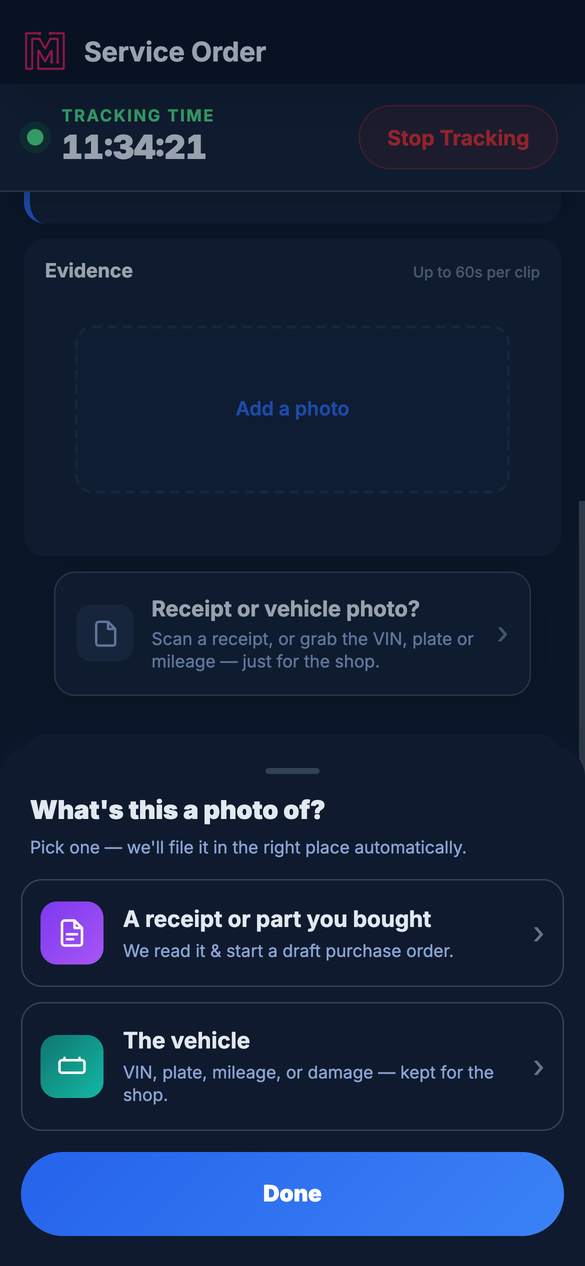
Pick what you're photographing — receipts and vehicle shots are filed differently.
Pick a slot.
You'll see labeled slots — VIN, License plate, Odometer / hours, Asset tag, Damage, and Other. Tap the one you're capturing.
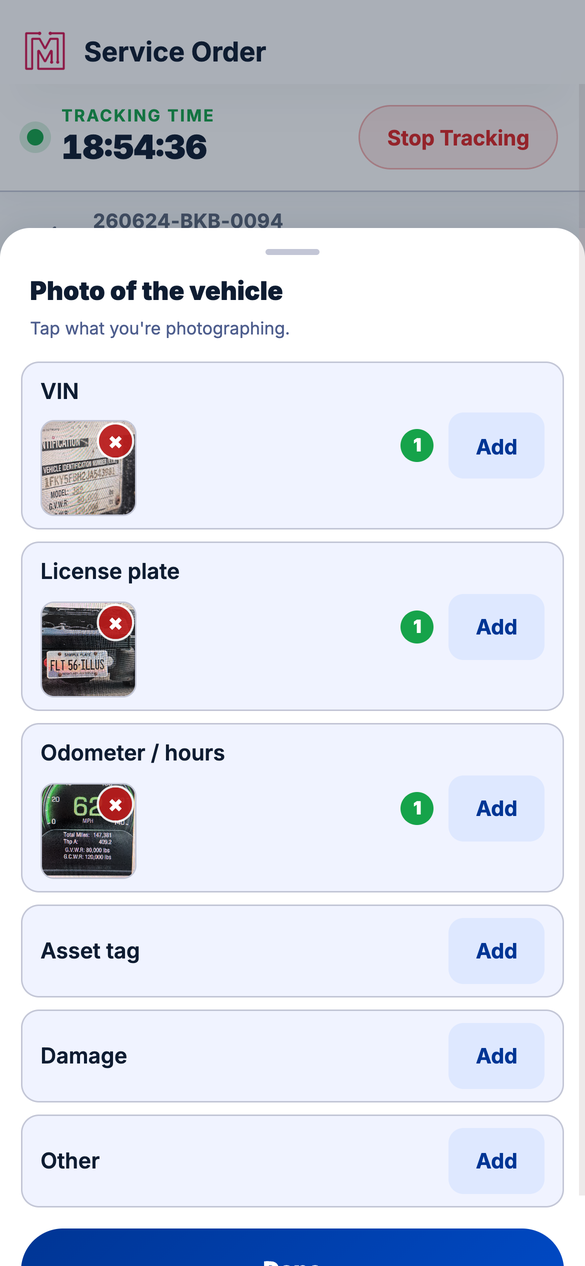
A slot for each thing worth recording on the vehicle. Each slot has an Add button, and some already show a captured photo.
Tap Add to capture the photo.
Tap the slot's Add button. On the app, you can take a photo now or choose one you already have in your gallery; on the web, Add opens your device's file picker. Either way the photo is saved and read the same way.
Check the value and save.
For VIN, license plate, and odometer, the app reads the value straight off your photo and proposes it. Confirm the number, fix it if needed (for a plate, set the state), and Save. The photo's thumbnail shows so you know it captured.
No vehicle on file? No problem. If the order was created for a truck that isn't in the system yet, the app now sets the vehicle up for you the first time you Save — capturing a VIN, plate, or odometer photo just works. You won't get the old "no vehicle on file" message anymore.If a photo won't read
If the app can't make out the value — a blurry shot, glare, or the wrong thing in frame — it tells you exactly which one and gives you both ways to fix it:
- You'll see a message like "We can't read the VIN. Retake the picture or enter it by hand." (and the matching wording for the license plate or odometer).
- An empty field opens right there so you can type the value in by hand — no need to recapture.
- The slot's Add button stays put, so you can also just retake the photo. The message clears once the value reads or you save one by hand.
The photo itself is still saved either way, so the shop has the picture even if the auto-read missed.
The VIN fills in more than the number. When the VIN reads, the app looks up the full vehicle details from the VIN — make, model, year, engine, and more — so the shop has a complete picture without typing it all in. See What the VIN Lookup Fills In.
These stay in-house. Vehicle info photos are kept for the shop — they're not shown to the customer, and they don't count as repair evidence. Capture as many as you need.Troubleshooting
| Symptom | Likely cause | Fix |
|---|---|---|
| "We can't read the VIN / plate / odometer" | Glare, angle, a dirty label, or the wrong thing in frame | Type the value into the field that appears, or tap Add to retake the photo closer and straight-on. |
| The read came out wrong | Hard-to-read label | Edit the proposed value before you save, or retake the photo. |
| The camera didn't open | Camera permission isn't granted | Allow camera access for MetaFleet in your phone settings, or use Add to pick an existing photo from your gallery instead. |
| The gallery wouldn't open | Photo-library permission isn't granted | Allow photo-library access for MetaFleet in your phone settings. |
| I picked the wrong slot | Photo filed under the wrong label | Remove the thumbnail and re-add it under the right slot. |
| I meant to scan a receipt | Chose "The vehicle" by mistake | Go back and pick A receipt or part you bought. |
Does it really read the VIN automatically?
Yes — VIN, plate, and odometer are read from the photo and proposed; you confirm or correct the value. When the VIN reads, the app also looks up the full vehicle details from the VIN to fill in the rest.
Can I choose a photo I already took instead of shooting a new one?
Yes — on the app, the slot's Add button lets you take a photo or choose one from your gallery (on the web, Add opens your device's file picker). A gallery pick is saved and read exactly the same way.
What if the app can't read my photo?
It tells you which value it couldn't read and opens a field so you can type it in by hand, or you can retake the photo. The photo is still saved either way.
The truck isn't in the system yet — can I still capture its VIN?
Yes. The first time you save a VIN, plate, or odometer photo, the app sets the vehicle up for you automatically. No more "no vehicle on file" dead end.
Can I add more than one photo per slot?
Yes — add as many as you need; each shows as a thumbnail.
Will the customer see these?
No — vehicle info photos are kept for the shop, and they don't satisfy the repair-photo requirement.
What's the difference between this and Evidence photos?
Evidence photos document the work; vehicle info photos record identifiers like the VIN, plate, and mileage.