
Shops that repeat the same part combinations — a brake job, a PM oil change, a gasket set. Build the kit once and reuse it on every job.
What you'll learnHow to create a kit, add its component parts and quantities, and what happens to pricing and stock when a kit lands on an estimate or invoice.
Before you start- You'll need: The Manage Parts permission, and the component parts should already be in your catalog (see Add New Parts).
- Good to know: A kit is a special kind of part. It shows a KIT pill in your catalog and carries a list of components instead of its own stock.
Quick summary
- Go to Parts & Inventory → Parts and click + Kit.
- Name the kit and (optionally) pick a category.
- Search and add each component part with its quantity.
- Click Create kit.
Start a new kit.
From the Parts catalog, click + Kit (next to + Part). The Create kit window opens.
Name it and add components.
Give the kit a Name (the SKU auto-generates; category is optional). Under Components, search the catalog and click parts to add them, then set the Qty of each. The kit's rolled-up cost updates as you go.
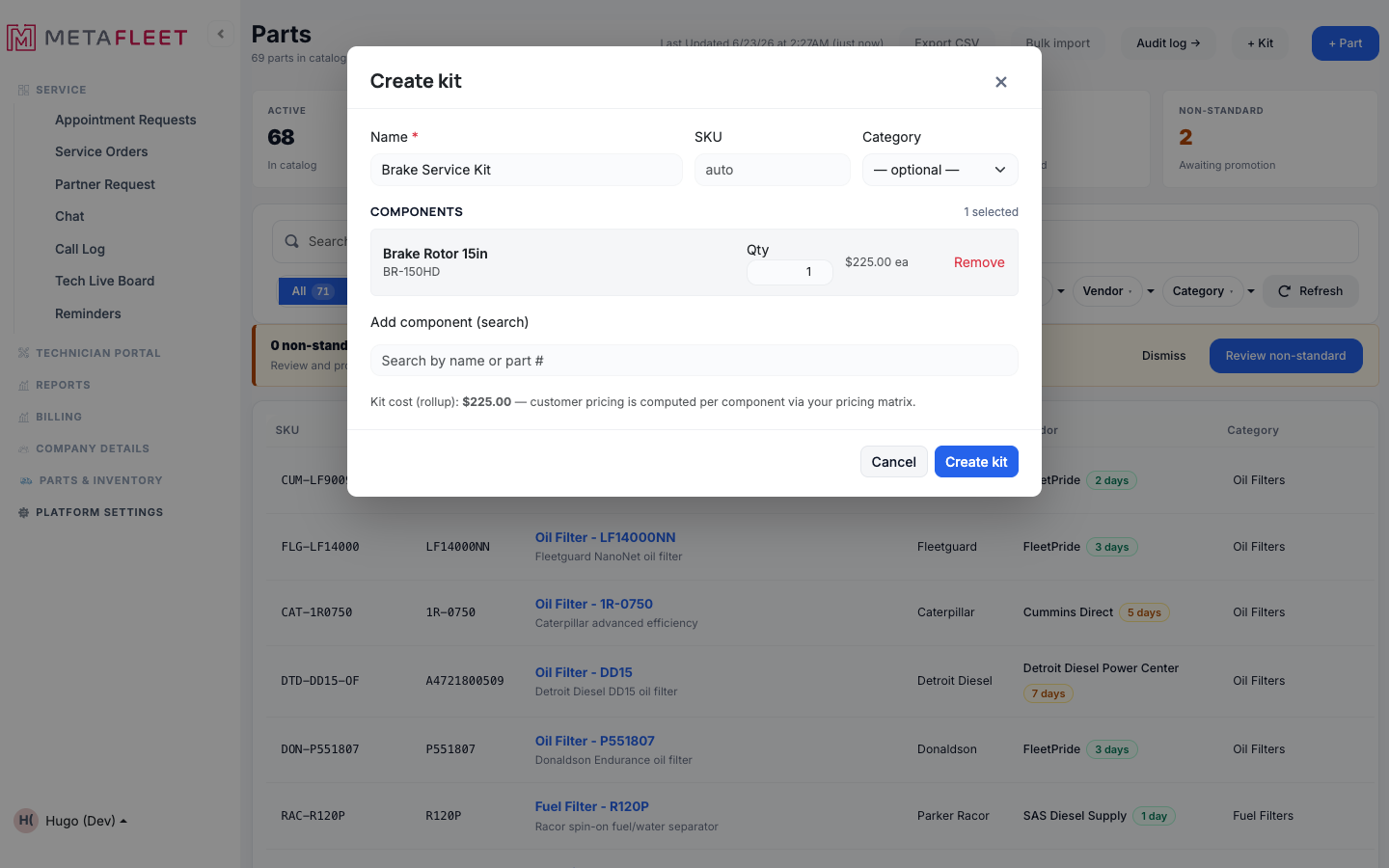
Building a kit: name it, add components with quantities. The footer shows the kit's cost rollup; customer pricing is computed per component via your markup matrix.
Click Create kit.
The kit appears in your catalog with a KIT pill, ready to drop onto estimates and invoices.
Kits explode on the invoice. When you add a kit to an estimate or invoice, it expands into its individual component lines — so pricing stays accurate per part and stock is drawn from each component, not from the kit itself.Editing a kit
Open the kit from the catalog and click Edit. Toggle This part is a kit on a regular part to convert it, or add/remove components and change quantities on an existing kit. (See Editing Existing Parts.)
Troubleshooting| Symptom | Likely cause | Fix |
|---|---|---|
| A part isn't in the component search | It isn't in the catalog yet | Add it first (see Add New Parts), then add it to the kit. |
| The kit's price looks off | Pricing is per component, from your markup matrix | Check each component's cost and the matrix (see Parts Pricing & Markup). |
| Stock didn't drop for the kit | Stock is tracked on the components, not the kit | That's expected — each component deducts when the job completes. |
Does a kit have its own stock?
No — a kit carries components. Stock lives on each component part and is drawn from them.
Can I change a kit's components later?
Yes — edit the kit to add, remove, or re-quantity components anytime.
How is a kit priced?
Per component, using your markup matrix. The kit window shows the rolled-up cost as a reference.