
For: Owners, managers and dispatchers · Permission: Manage Inspections · Time: ~15 minutes for a first template
Quick summary
- Open Settings › PM & Inspections › Inspection Library.
- On the Items tab, add any question your shop asks that isn't in the list yet.
- On the Templates tab, click + New template. Name it and set the inspection type under Show form details & branding.
- Add sections, drop items into them and click Preview.
- Click Save.
Before you start
- You need the Manage Inspections permission.
- Items are the questions. Templates are the forms. A template is a list of sections, and each section holds items from your item list.
- Templates belong to the whole shop. The builder has no field for a service location, a customer or a vehicle type.
- To run an inspection from a finished template, see Run an Inspection and Handle Follow-ups.
Open the Inspection Library
Go to Settings › PM & Inspections and click the Inspection Library tab. It has two tabs of its own: Items and Templates.
Build your inspection items
Each row on the Items tab is one question, with its category, answer type and whether it's active. The Scope column shows Yours for items your shop made and Global for items MetaFleet provides. Use the search box, the All / Global / Yours buttons or the category list to find one.
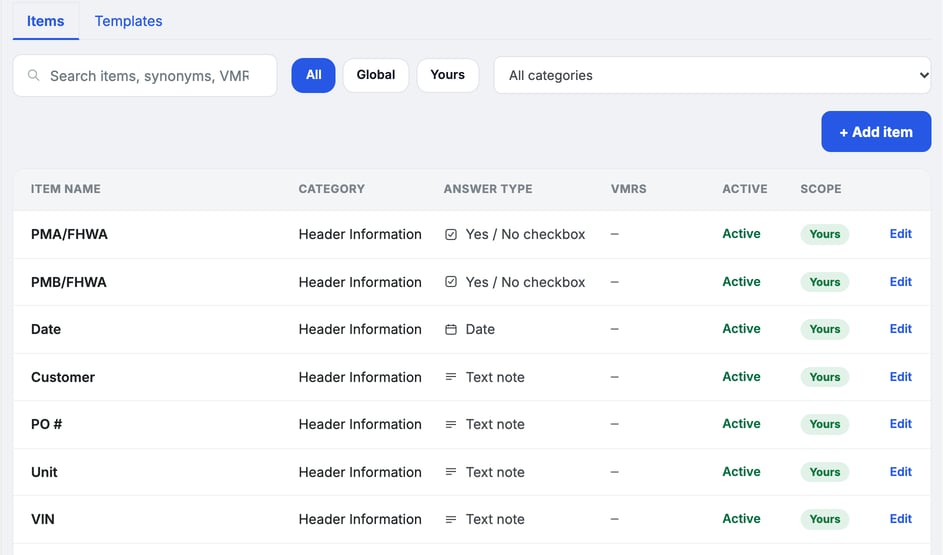
- Add an item. Click + Add item.
- Name it. Fill in Item name and Category. Both are required.
- Choose how it's answered. Click change next to Answer type. The types you'll see in the list include Pass / Defect / N/A, Yes / No checkbox, Text note, Date and Measurement.
- Add a VMRS code if you use one. It's optional.
- Click Save item.
To change an item, click its row or Edit. Clear Active to hide an item from the pickers. It stays on past inspections.
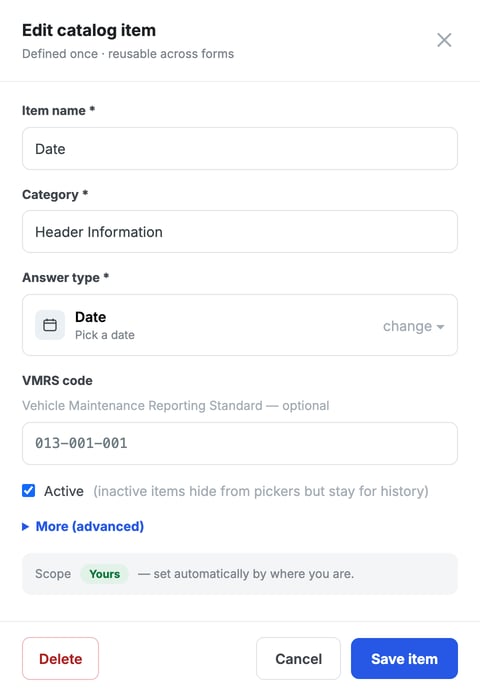
Global items are read-only. You can use them in your templates but not edit them.
Start a template
Click the Templates tab. Your shop's templates sit under Your templates. The ones MetaFleet provides sit under Global templates. Each card shows the type, the number of sections and items, and an Official form badge if a PDF is attached.
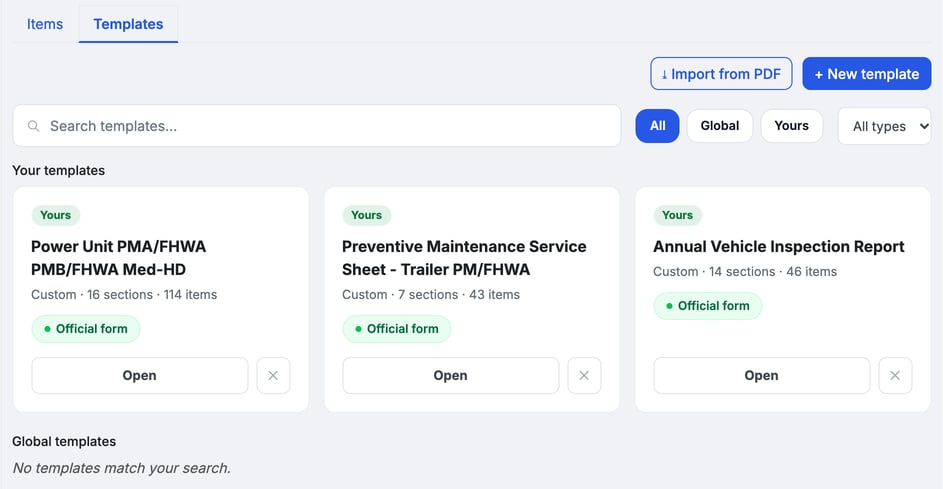
You have three ways to start:
- Click + New template to build one from scratch.
- Copy a Global template and edit your copy. See "Use a Global template" below.
- Click Import from PDF and pick the form you use today. MetaFleet reads the questions and matches them to your items, and you review the result before it's built.
With no templates yet, the tab offers these same three choices.
Set the template type and details
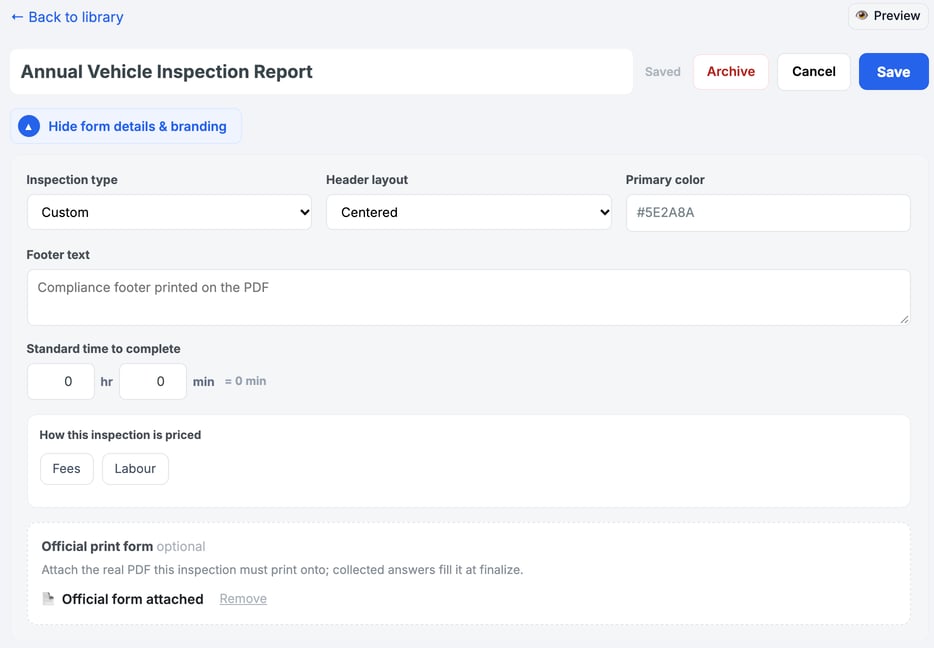
In the builder, type the template name at the top. Click Show form details & branding and set:
- Inspection type: DVIR, PM (Preventive Maintenance), Annual, BIT (90-day) or Custom.
- Header layout, Primary color and Footer text: how the finished PDF looks.
- Standard time to complete: the hours and minutes you expect the inspection to take.
- How this inspection is priced: the Fees and Labour buttons.
- Official print form: attach the real PDF this inspection must print onto. The answers fill it in when the inspection is finalized.
Add sections and items
- Add a section. Click + Add section and name it, for example "Brake System".
- Add items. Search the item list on the left and click + next to an item to add it to the open section. Placed means the item is already in the template.
- Adjust each item. Click the Optional toggle on an item to switch between optional and required, or use Label override to change the wording the customer sees.
- Reorder. Use the up and down arrows on a section to move it.
Preview the form
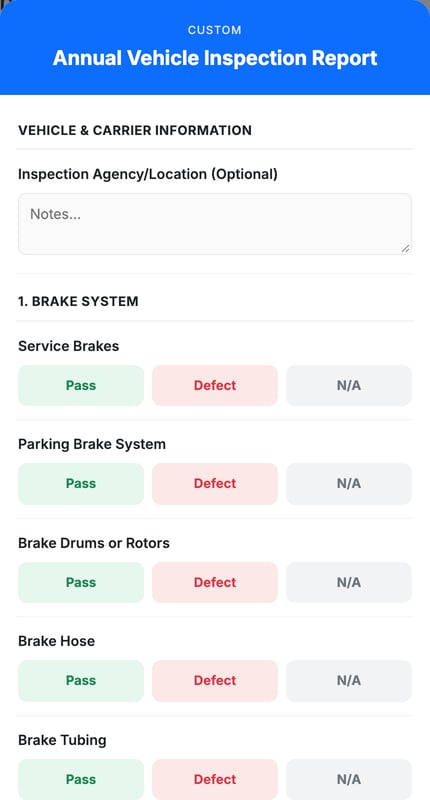
Click Preview at the top right. The Technician preview shows what the technician sees on the tablet, with the answer buttons for each item. Close it to keep editing.
Save the template
Click Save. The label next to the name reads Saved when there is nothing left to save. Click Cancel to leave without saving, or ← Back to library to return to the list.
Use a Global template
Global templates are read-only. Click View on a Global card to look at the template. To change it, click Clone to edit to get your own copy under Your templates, then edit the copy.
Archive a template and bring it back
Open the template and click Archive. MetaFleet asks "Archive this form?". Confirm with Archive. An archived template isn't offered on new inspections, and completed inspections keep it.
To bring one back, click Archived (n) at the top of the Templates tab (the button appears only when you have an archived template), open the template and click Restore.
Troubleshooting
| Symptom | Likely cause | Fix |
|---|---|---|
| I don't see the Inspection Library tab | Your role doesn't include Manage Inspections | Ask an admin to add the permission to your role. |
| I can't edit a Global item or template | Global items and templates are read-only | Click Clone to edit on the template and edit the copy. For an item, add your own. |
| A template is missing from a new inspection | It's archived | Restore it from Archived (n) on the Templates tab. |
| An item doesn't show in the picker | The item is cleared as inactive | Open the item and select Active. |
FAQs
Can I make a template for one service location?
No. Templates apply to the whole shop. Name the template for the location (for example "DVIR - North Yard") if you want to tell them apart.
Can I limit a template to one customer or vehicle type?
Not from the Inspection Library. The builder has no field for either.
Can I edit a Global template?
No. Click Clone to edit and edit your copy.