
Who this is for
Dispatchers pricing a diagnosed job and sending the estimate on for approval.
What you'll learn
How to read the estimate progress, price each work item, check the total, and send — and what "Send" does depending on your approval gates.
Before you start
- You'll need: A service order at Diagnosis Complete with one or more work items from the technician's diagnosis.
- Good to know: Where the estimate goes on Submit depends on your approval gates — see Understanding the Approval Gates.
Quick summary
- Open the order's Estimate tab.
- Review each work item — add labor, parts, and fees.
- Check the total and the routing hint.
- Click Send Estimate.
Step-by-step
Open the Estimate tab.
On the service order, click Estimate. The Estimate Progress bar shows where the job is — from Create Estimate through Invoice Sent.
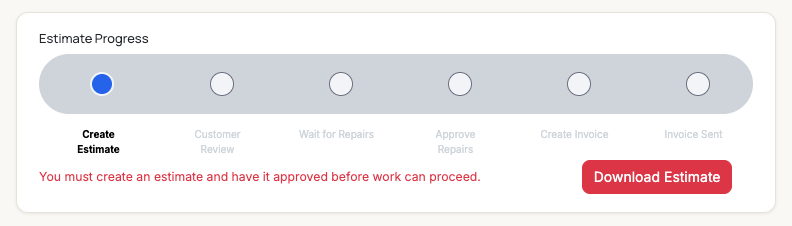
The estimate's journey at a glance. You're at "Create Estimate."
Price each work item.
Each work item carries its Service details (the complaint and diagnosis) plus sections for Labor, Parts, and Misc./Fees. Add or edit each as needed — pick a labor rate and quantity, add parts, and tack on any fees. Use Add Work Item if something was missed.
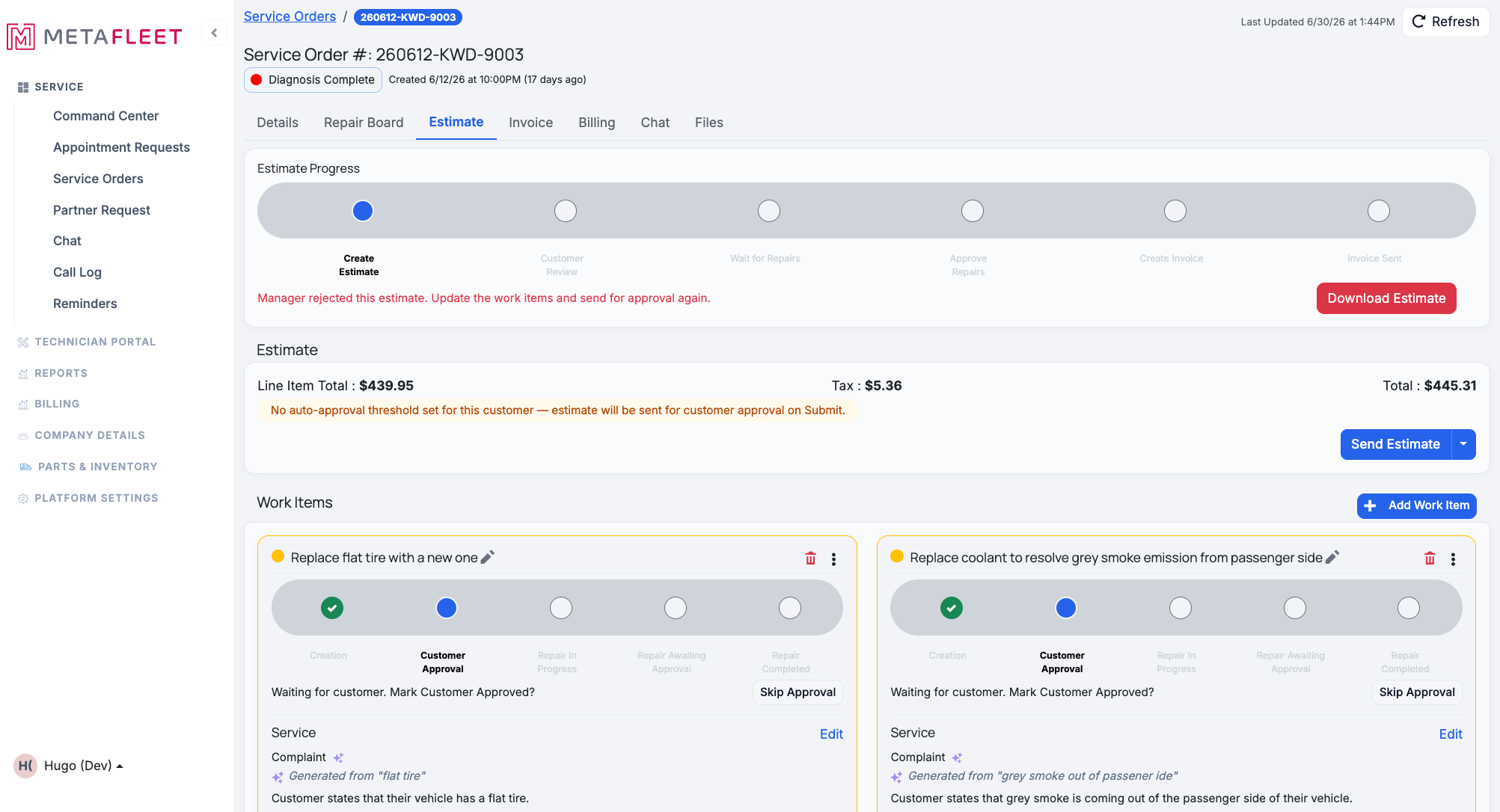
A work item priced out — labor here, with Parts and Misc./Fees a click away.
Check the total and the routing hint.
The summary rolls up the line items, tax, and total. A hint tells you exactly where Send will route the estimate — to the customer, to a manager, or auto-approved under the customer's threshold.
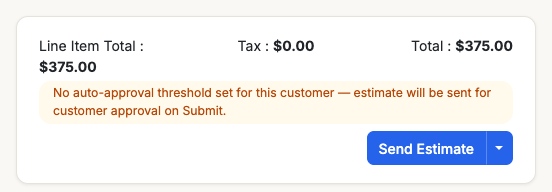
Totals plus a plain-language hint about where Submit will send it.
Send the estimate.
Click Send Estimate. What happens next follows your approval gates (next section).
What "Send" does — it depends on your gates
| Your setup | Send routes the estimate to… |
|---|---|
| Manager approval for estimates is on | A manager first, who reviews before it goes to the customer. |
| Customer approval on, total over the threshold | The customer, for explicit approval. |
| Customer approval on, total at/under the threshold | It auto-approves — the customer isn't asked. |
| Customer approval off | It auto-approves — no customer round-trip at all. |
The hint on the summary card always tells you which of these applies before you click. For the full picture, see Understanding the Approval Gates.
Editing up past the threshold re-routes it. If an estimate already auto-approved under the customer's threshold and you then edit work items so the total crosses that threshold, MetaFleet automatically moves it back to Pending instead of letting it quietly stay auto-approved. Re-check the routing hint, then click Send Estimate again — it will now route to the customer for approval.
Those sparkles. The complaint and diagnosis text on a work item are often drafted by MetaFleet's AI from the technician's notes. Click Edit on the Service section to adjust the wording before sending.
The Service Fee (auto-applied)
Beyond the per-work-item Misc./Fees, your shop can turn on a tenant-wide Service Fee that auto-applies to every estimate and invoice — it shows as its own line in the summary's Fees band. It's set up once under Settings → Fees → Service Fee Config, with day/night time tiers (and holiday rates) that mirror how labor rates work, so the right amount applies based on when the work happens. If a particular job shouldn't carry it, remove the Service Fee from that one estimate or invoice — the removal is logged to the order's activity log.
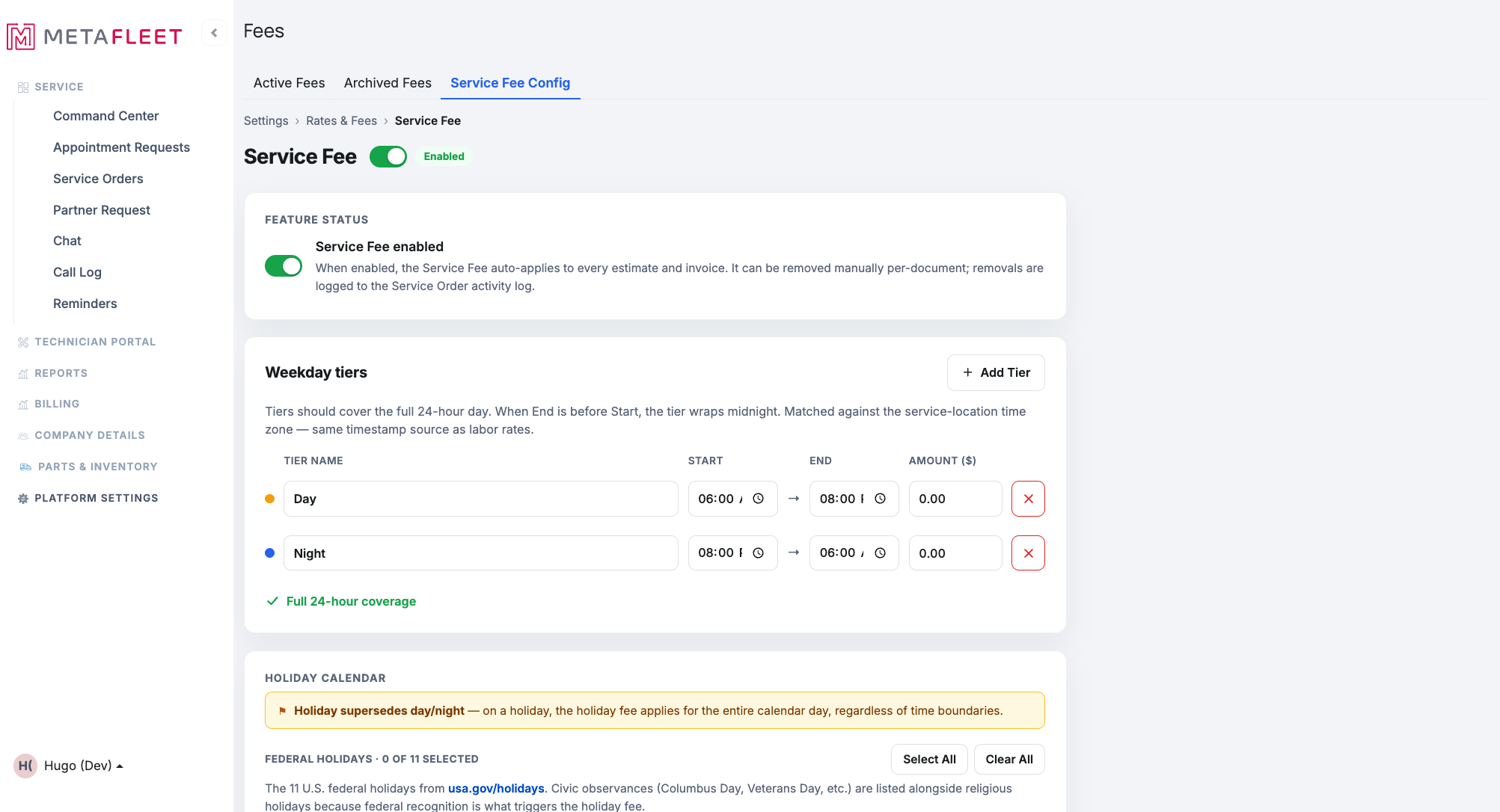
Service Fee Config — a tenant-wide fee with day/night tiers and holiday rates that auto-applies to estimates and invoices.
Troubleshooting
| Symptom | Likely cause | Fix |
|---|---|---|
| Send Estimate is disabled | A work item still needs pricing, or it's mid-approval | Finish pricing each item; check the per-item status. |
| The total looks wrong | A labor rate, quantity, or part is off | Open the work item and adjust Labor / Parts / Misc./Fees. |
| I expected the customer to get it but they didn't | It auto-approved under the threshold, or the customer gate is off | Check the routing hint and the customer's auto-approval threshold. |
FAQs
Can I add a work item that wasn't in the diagnosis?
Yes — use Add Work Item on the Estimate tab.
Where do labor rates come from?
From your configured rate types (e.g. Standard Labor Rates); pick the rate and enter the quantity on the work item's Labor line.
Can I download the estimate?
Yes — use Download Estimate on the Estimate tab for a PDF.
Will the customer see my internal notes?
Work-item notes are internal; the customer sees the estimate's line items and totals.
My estimate auto-approved, but after I edited it, it went back to Pending — why?
Your edits pushed the total over the customer's auto-approval threshold. MetaFleet moves an auto-approved estimate back to Pending once the total crosses the line — so an above-threshold job can't quietly stay auto-approved without the customer signing off. Re-check the routing hint and click Send Estimate again; it will now route to the customer for approval.