
For: Dispatchers & Managers · Where: Create or Edit Vehicle · Time: Under a minute
Who this is forDispatchers and admins adding a new vehicle, or filling in details on one that's already on file. If your shop has VIN lookup turned on, you'll see the Decode button next to the VIN field.
What you'll learnHow to use VIN auto-fill when creating or editing a vehicle, what gets filled in for you, where the rest of the decoded specs show up (the full breakdown appears when you create a vehicle), and what happens when a VIN is mistyped or the lookup is briefly unavailable.
Before you start- You'll need: A 17-character VIN (or at least 11 characters for a partial read). Heavy equipment often uses a manufacturer serial number instead of a VIN — those won't decode.
- Turned on for your shop?: VIN lookup is a per-shop setting. If you don't see a Decode button, ask an admin to enable it.
Quick summary
- Open Create Vehicle (or edit an existing one) and put the cursor in the VIN field.
- Type the VIN, or scan it — a technician's VIN photo reads it automatically.
- Click Decode.
- The app fills in make, model, year, and asset type, and shows the full spec breakdown below.
- Review, adjust anything you need, and save the vehicle.
Open Create or Edit Vehicle.
From your fleet list, start a new vehicle with Create Vehicle, or open an existing one and choose Edit. Both screens have the same VIN field.
Enter the VIN — type it or scan it.
Put the VIN in the VIN field. You can type it, paste it, or — out in the field — a technician can photograph the VIN plate and the app reads the number straight off the photo (see Capture Vehicle Info Photos). Either way the same lookup runs.
Click Decode.
The Decode button sits next to the VIN field and turns active once the VIN is at least 11 characters. Click it, and MetaFleet looks up the full vehicle details from the VIN. It takes a moment — the button reads Decoding… while it works, then Decoded when it's done.
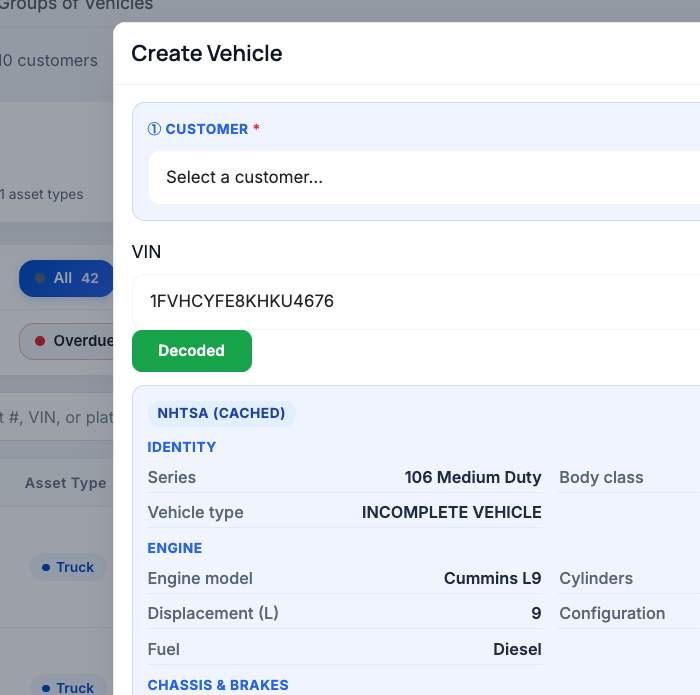
Enter the VIN and tap Decode — the full spec breakdown fills in below, with a badge showing where the details came from.
Review what filled in.
The lookup auto-fills the core fields on the form — make, model, year, and asset type — but only where they're still blank, so it never overwrites something you already typed. When you're creating a vehicle, everything else the lookup returned shows in a read-only details panel just below the VIN field. (On the Edit screen, the core fields still fill in, but the full breakdown panel isn't shown.)
Adjust if needed, then save.
The auto-filled fields are yours to edit — change anything that's off, fill in the rest, and save the vehicle as usual.
Also right inside Create Service Order. Starting an order for a truck that isn't on file yet? In the vehicle picker, choose + Create a new vehicle — the same Create Vehicle form opens, VIN decode and all, so you can add the vehicle and write the order in one go.What gets filled in
The VIN lookup returns far more than the basics. The form auto-fills the four core fields; on the Create Vehicle screen the details panel below shows the rest, grouped so it's easy to scan:
| Group | Examples of what's shown |
|---|---|
| Auto-filled on the form | Make, model, year, asset type |
| Identity | Trim, series, body class, vehicle type |
| Engine | Engine model and make, cylinders, displacement, horsepower, fuel, turbo, transmission |
| Chassis & brakes | Brake system, drive type, number of axles, axle configuration |
| Dimensions | GVWR, GCWR, curb weight, cab type, doors, wheelbase, seats |
| Electric | Battery type and capacity, charger level, EV drive unit |
| Safety | ABS, ESC, traction control, TPMS, forward-collision and lane-departure warnings, blind-spot monitoring |
| Manufacturing | Manufacturer, plant city, state, and country |
There's also an All decoded fields section you can expand to see every single value the lookup returned — nothing is hidden.
Where the details come from. On the Create Vehicle screen, a small badge at the top of the details panel tells you how the details were fetched: a live lookup against the national vehicle database, a saved result from a recent lookup of the same VIN, or the built-in offline backup. They all fill in the same fields — the badge just tells you the source.
If the live lookup is briefly unavailable, MetaFleet automatically falls back to its built-in offline decoder so you can keep working. The offline backup covers the common specs from the VIN's pattern. On the Create Vehicle screen, the source badge will show the details came from the offline backup.When a VIN is mistyped
A few letters never appear in a real VIN — I, O, and Q — because they look too much like 1, 0, and 0. If one of those slips in (say an O where a 0 belongs), MetaFleet flags it in the details panel on the Create Vehicle screen:
- It points to the exact spot — for example, "'O' at position 9 — did you mean '0'?"
- It offers a corrected VIN with a Use this button. Click it to drop the fix into the VIN field, then click the decode button again (it reads Retry after a flagged VIN) to re-run the lookup on the corrected number.
| Symptom | Likely cause | Fix |
|---|---|---|
| No Decode button next to the VIN field | VIN lookup isn't turned on for your shop | Ask an admin to enable VIN lookup for your shop. |
| Decode button stays greyed out | The VIN is too short to look up | Enter at least 11 characters (a full VIN is 17). Check for missing characters. |
| "Could not decode — some fields were left for you to fill" | The VIN read partially — not every spec was available | The basics fill in; type in anything missing by hand, then save. |
| "Could not decode this VIN" | The number isn't a recognizable VIN (often a heavy-equipment serial number) | Fill the fields in manually. Equipment serial numbers don't decode. |
| "This VIN has an invalid character" (Create Vehicle) | An I, O, or Q is in the VIN | Use the Use this suggestion to apply the fix, then click the decode button again (it reads Retry). |
| Make/model didn't change after decode | Those fields were already filled, so the lookup left them alone | Clear the field and decode again, or edit it directly. |
Do I have to type the VIN, or can I scan it?
Either. You can type or paste it on the Create/Edit Vehicle screen, or a technician can photograph the VIN plate in the field — the app reads the number off the photo and the same lookup runs.
Will it overwrite details I already entered?
No. The lookup only fills the make, model, year, and asset type when those fields are still blank. Anything you've already typed stays put.
What if the lookup service is down?
MetaFleet falls back to a built-in offline decoder automatically, so you can keep adding the vehicle. On the Create Vehicle screen, the source badge will show the details came from the offline backup.
It says my VIN has an invalid character — what now?
A real VIN never contains I, O, or Q. On the Create Vehicle screen, MetaFleet shows you the position and a suggested correction; click Use this, then click the decode button again (it reads Retry).
Where do I see everything the lookup found?
When you create a vehicle, the details panel below the VIN field groups the specs (engine, brakes, dimensions, and more), and an All decoded fields section lists every value returned.
My equipment serial number won't decode — is that a bug?
No. VIN lookup works on standard vehicle VINs. Heavy equipment usually uses a manufacturer serial number, which isn't a VIN, so you'll enter those details by hand.