
Who this is for
Admins who manage shop settings and billing.
What you’ll learn
• How to attach a Tax Group to your Service Location
• How taxes flow into estimates and invoices
• How to change tax groups when the shop expands to new regions
Before you start
• Create Tax Categories
• Create your Tax Group
• Add all taxes into that group
Quick Summary (TL;DR)
• Open Service Location
• Edit
• Select Tax Group
• Save
Step-by-Step
-
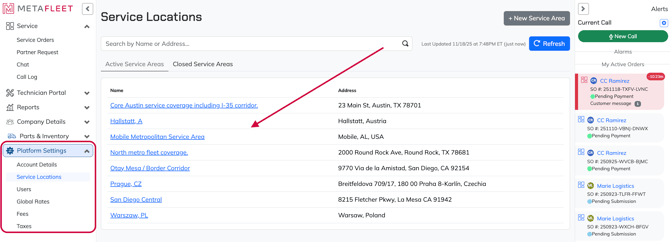
Go to Platform Settings → Service Locations.
-
Choose the service location you want to add taxes to.
-
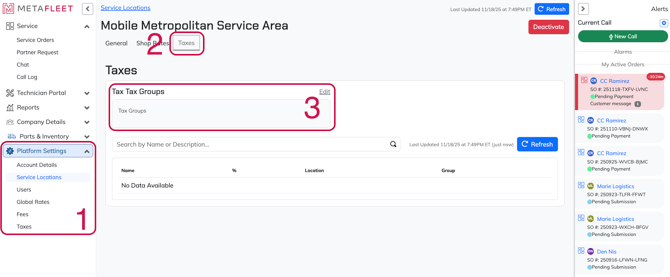
Click Edit.
-
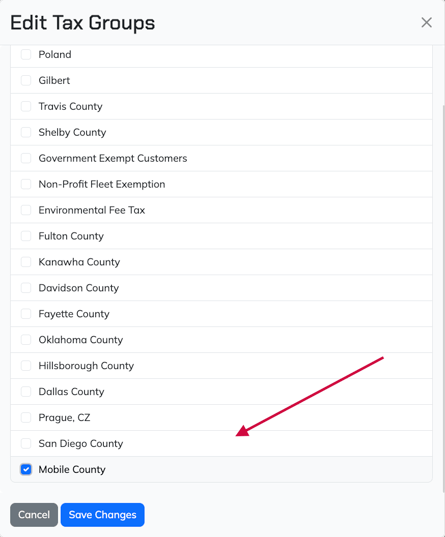
Find the Tax Group field and select the appropriate group.
-
Click Save Changes.
-
All new Estimates and Service Orders will now calculate taxes automatically.
Troubleshooting
| Symptom | Cause | Fix | Prevent |
|---|---|---|---|
| Tax not applying | No Tax Group selected | Edit location and assign group | Always assign group during onboarding |
| Wrong tax showing | Wrong group selected | Update group in location | Separate groups by city/county |
| Taxes triple-calculated | Duplicate taxes in group | Archive old taxes | Keep groups clean and organized |
FAQs
Can I change the tax group later?
Yes. New jobs use the new group automatically.
What if we expand into a new city?
Create a new Tax Category and Tax Group for that city.
Can I assign multiple groups to one location?
No—only one group can be active at a time.