
Admins and service managers who handle purchasing. You'll need the Manage Parts permission and at least one vendor already created.
What you'll learnHow to set a part's preferred vendor and its sourcing details, and how those details show up as lead-time chips on the parts list so you can spot slow-to-source parts at a glance.
Before you start- You'll need: The Manage Parts permission, and the vendor must already exist (see Add & Manage Vendors).
- Where it lives: The sourcing fields are in the part's Edit window, under Vendor & Sourcing.
Quick summary
- Open the part and click Edit.
- Under Vendor & Sourcing, pick a Preferred vendor.
- Add the vendor part number, lead time, and a vendor cost override if it differs.
- Click Update.
Open the part and click Edit.
From Parts & Inventory → Parts, click the part's name, then Edit (or use the row's ⋯ menu → Edit).
Pick the Preferred vendor.
Scroll to Vendor & Sourcing and choose the vendor from the dropdown. Selecting one unlocks the rest of the sourcing fields. Use Clear vendor to remove the link later.
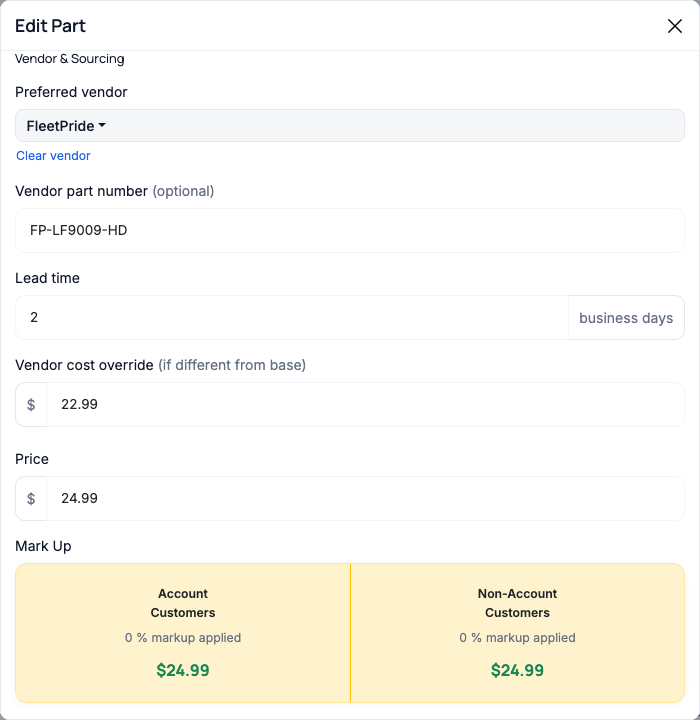
Vendor & Sourcing — the preferred vendor plus optional part number, lead time, and cost override.
Fill in the sourcing details.
Add the Vendor part number (the vendor's own SKU for this part), the Lead time in business days, and a Vendor cost override if this vendor's price differs from the base cost. Lead time here overrides the vendor's average for this part only.
Click Update.
The sourcing is saved. The part's lead time now shows as a colored chip in the Vendor column of the parts list.
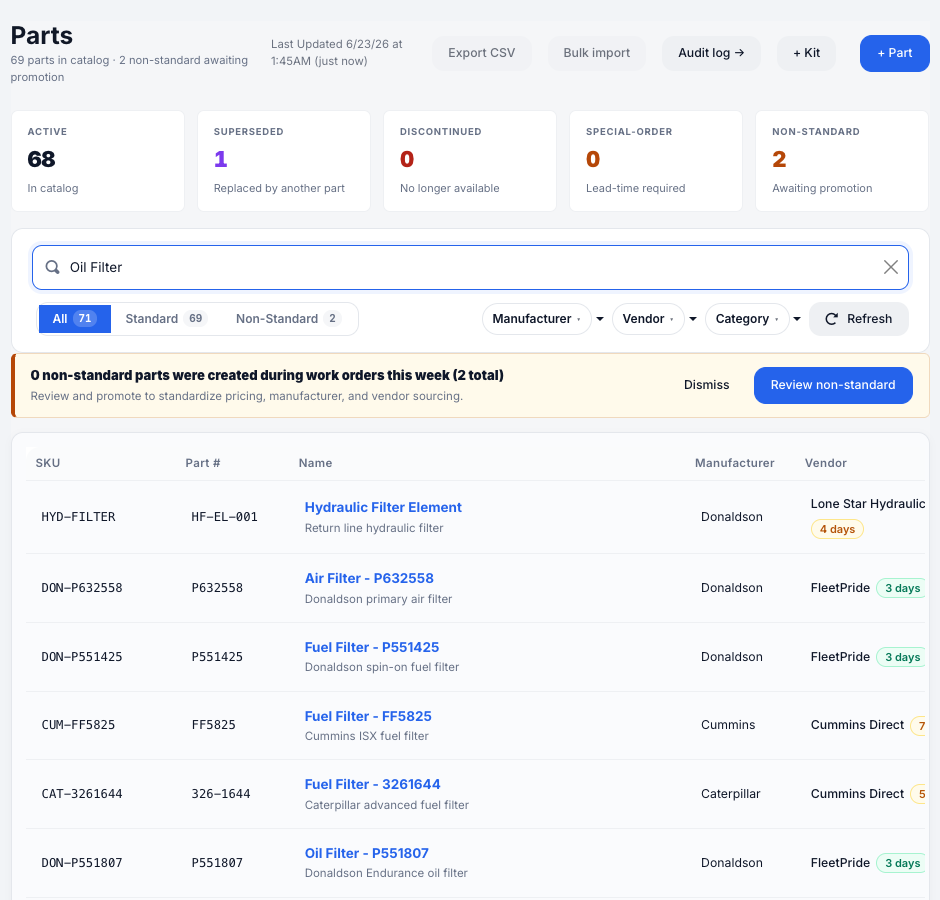
Lead-time chips on the parts list: green ≤ 3 days, amber 4–7, red > 7 — so slow-to-source parts stand out.
Per-part override vs vendor average. If you leave Lead time blank, the chip uses the vendor's average lead time. Enter a value here to override it for this specific part — handy when one part from a fast vendor is still back-ordered.Troubleshooting
| Symptom | Likely cause | Fix |
|---|---|---|
| The sourcing fields are greyed out | No preferred vendor selected yet | Pick a vendor first — the fields unlock. |
| The vendor isn't in the dropdown | It's inactive, or not created yet | Reactivate or add it under Parts & Inventory → Vendors. |
| The lead-time chip color looks wrong | A per-part override is set | Clear the Lead time field to fall back to the vendor's average. |
Can a part have more than one vendor?
A part has one preferred vendor for sourcing. Change it anytime from the Edit window.
What does the vendor cost override do?
It records what this vendor charges when it differs from the part's base cost — so comparisons and reorder math stay accurate.
Do I have to fill in every sourcing field?
No — only the preferred vendor. Add the part number, lead time, and cost as you have them.