
For: Everyone on the web app · Permission: none · Time: ~3 minutes
Quick summary
- Click the sparkle button in the top bar (Open Torque).
- Type your question, or pick one of the suggestions.
- Read the answer, then check the articles listed under Sources.
- Click End chat when you're done. Torque emails you a copy.
Before you start
- Torque is in the MetaFleet web app on a computer. It isn't in the technician mobile app or the customer portal.
- Every signed-in staff user sees it. You don't need a special permission.
- Torque answers from the MetaFleet help center and knows which page you're on. It doesn't change anything in your shop.
- Make sure your profile has an email address you can read. Torque sends your chat there.
Open Torque
Click the magenta sparkle button in the top bar. It sits just before the Support icon. Hover over it to see Torque (Ctrl+J). You can press Ctrl+J (⌘J on a Mac) instead of clicking.

Torque slides out on the right side of the page. If the Alerts panel was open, it folds to its narrow rail while Torque is open. It opens again when you fold Torque.
To get Torque out of the way, click the collapse arrow in its header or press Esc. Your chat stays open. Click the sparkle button to come back to it.
Ask a question
- Read the greeting. Torque uses your first name, for example Hey Frank, Torque here. What do you need help with?
- Type in the box that says Ask Torque a question…. A question can be up to 2,000 characters.
- Click the send arrow. While Torque writes its answer, the arrow turns into a stop button. Click it to stop the answer.
- Ask a follow-up in the same box. It now reads Ask a follow-up….
Before you ask, Torque shows a Suggested card with help articles for the page you're on. Click one to ask about it. Below it, click How do I… for questions that fit this page, or Create for the same create actions as the ⌘K bar. The How do I… button isn't on every page. Choosing a create action opens that page and keeps Torque open.
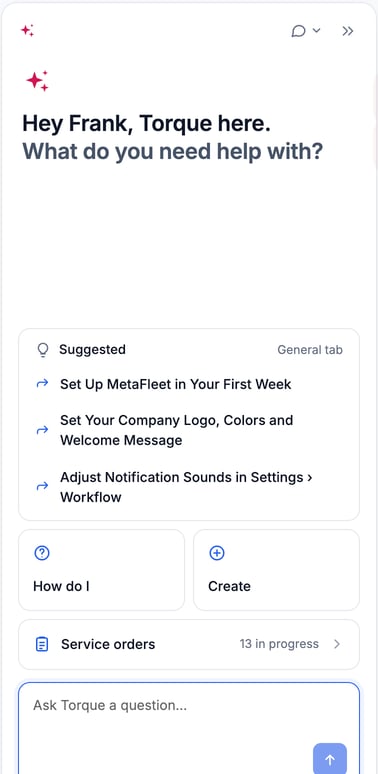
If your role can see service orders, a Service orders button is also there. Click it to see what is In progress now, Later today and Scheduled for the day. Use the arrows to move a week earlier or later, and click a row to open that order.
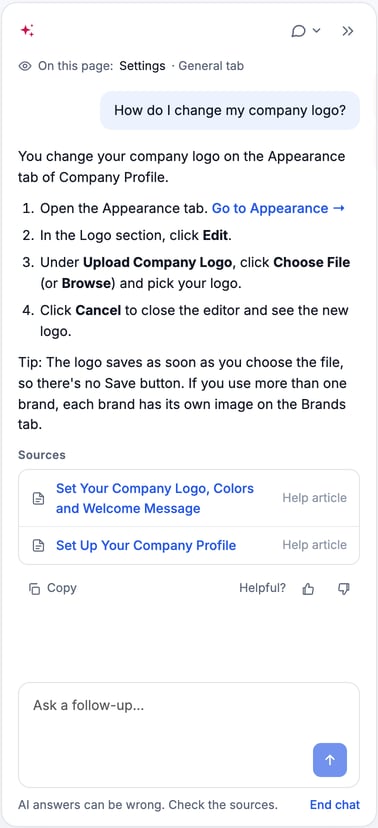
Once your chat has started, a line under the header reads On this page: with the page name, and the tab if you're on one. That's what Torque knows about where you are, so "How do I send this?" works on an order page.
Ask in your own words. If you describe how you did something in other shop software, Torque uses the MetaFleet word for it. A "work order" is a service order here, and a "quote" is an estimate.
Check the sources
Under a finished answer, a Sources list shows the help articles Torque used. Open one to read the full steps. Under the box, the panel reminds you: AI answers can be wrong. Check the sources.
Torque looks for the answer in the help center. If it can't find one, it says so instead of guessing. If your question could mean more than one thing, Torque asks which you mean and offers 2 to 4 choices. You can rephrase the question, read the help center yourself, or ask for a person.
Under an answer, click the copy icon to copy it. Next to Helpful?, click thumbs up or down. After thumbs down you can say what was wrong and click Send feedback.
Find a past chat
- Click the Chats button in Torque's header (the chat bubble with a down arrow).
- Choose New chat to start fresh. The chat you leave stays in Chats.
- Choose Chats to see your list. It shows your own chats, grouped by day, with the most recent first. A number next to Chats counts them.
- Click a chat to read it again. A past chat is read-only. To keep going, click New chat.
Only you can see your chats. Torque keeps them for 180 days. At the bottom of the list the panel says so. With no chats yet, it reads No chats yet. Ask Torque something and it shows up here.
End a chat and get the copy
A chat ends when you click End chat (under the question box) or New chat. It also ends after 30 minutes with no activity, or when it reaches 200 messages. At 200 messages, Torque starts a fresh chat for you.
When a chat ends, MetaFleet emails a copy to the email address on your user profile. The panel confirms it: Chat ended. A copy is on its way to your address. Each chat is emailed once. Click Start a new chat to keep going.
Get a person
If Torque can't solve it, ask for help from Support. Torque offers to send your question to MetaFleet Support. Nothing is sent until you approve it. You see a card titled Send this to MetaFleet Support? first.
- Check the Subject. Change it if you like.
- Read What Support will read. Edit the summary so it says what you need.
- Look at Also attached. It lists this chat, the page you're on and your contact and company.
- Click Send to Support. Or click Cancel to send nothing.
Support replies by email to the address shown on the card.
The daily limit
Torque has a daily limit for each person and for each company. When you reach it, Torque shows Your daily Torque limit is reached. or Your company's daily Torque limit is reached. It resets at midnight, shop time. Until then, click Open help articles to read the help center, or Contact Support, which opens the Send this to MetaFleet Support? card so you can check it before anything is sent.
Torque or your own AI tool?
Torque is MetaFleet's own assistant. It helps you use MetaFleet and answers from this help center. If you want an AI tool such as Claude or ChatGPT to work with your shop's data, connect it instead. See Connect Claude, ChatGPT or Perplexity to MetaFleet and What You Can Ask Your AI Assistant.
Troubleshooting
| Symptom | Likely cause | Fix |
|---|---|---|
| You don't see the sparkle button | You're in the technician mobile app, the customer portal or a narrow window. Torque is on the desktop web app. | Sign in to MetaFleet in a browser on a computer and widen the window. |
| Couldn't reach Torque. | Your connection dropped. Nothing was sent. | Click Try again. |
| An answer has no Sources | Torque didn't use a help article for it. | Treat it with care. Rephrase the question, or search the help center yourself. |
| The answer doesn't match your screen | A newer change isn't in the help center yet. | Ask Support through the Send this to MetaFleet Support? card. |
| Your daily Torque limit is reached. | You or your company used the day's allowance. | Wait until midnight, or click Contact Support. |
| No transcript email | The chat is still open, or the email went to your spam folder. | Click End chat, then check your spam folder. |
FAQs
Can Torque change my orders, estimates or settings?
No. It answers questions and takes you to pages. You make every change yourself.
Can Torque search my shop's orders or customers?
Torque's answers come from the help center and the page you're on. It can't search your customers or orders for you. The Service orders card in the panel lists the day's orders, and you can ask about the order whose page you're on. To ask an AI tool about your shop's data, connect your own tool (see above).
Who can see my chats?
Only you. Torque keeps each chat for 180 days.
Does Torque cost extra?
No. It's part of MetaFleet. The daily limit keeps usage fair.
Can I use Torque on my phone?
No. Torque is in the desktop web app only.