
For: Fleet customers · Where: Email link or your portal · Time: ~2 minutes
Who this is forFleet customers who've received an estimate and need to approve the work — or decline part of it — before the shop proceeds.
What you'll learnThe two ways to open an estimate, how to approve or decline each line, and what happens after you confirm.
Two ways to open your estimate- From the email: Click Review to approve in the estimate email — no login needed.
- From your portal: Open Service Orders, pick the order, and review the estimate there.
Quick summary
- Open the estimate (email link or portal).
- Set each work item to Approve or Deny.
- If you deny an item, add a reason (required).
- Click Confirm.
Review the estimate.
Each work item shows the complaint, the diagnosis, and the price, with an Approve / Deny choice. Set the ones you want done to Approve.
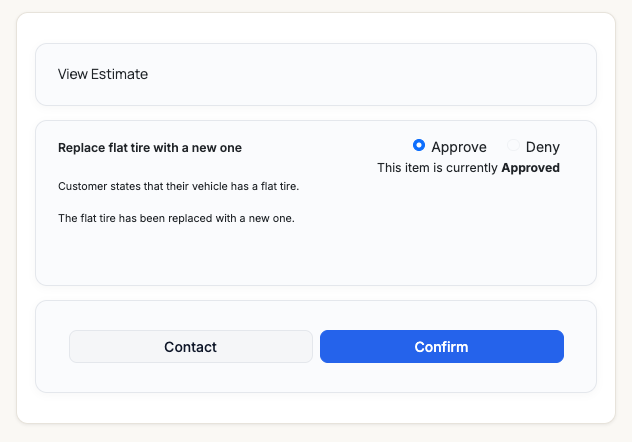
Approve the work you want done — each item has its own choice.
Decline an item (optional).
Don't want a particular item? Choose Deny for that line and add a short reason — it's required, and it tells the shop why so they can adjust.
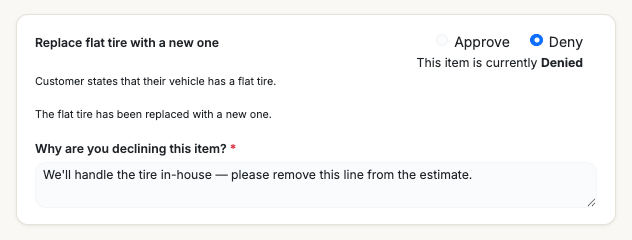
Declining a line asks for a quick reason the shop will see.
Confirm.
Click Confirm. The approved work starts right away; any declined items are dropped, and the shop receives your reasons.
Have a question first? Use Contact to message the shop before you decide — handy if you want to ask about a line item or get more detail.Good to know
- Untouched items follow your link. If you came from the approve link and confirm without changing anything, all items are approved; from the decline link, they're declined. Set each line explicitly if you want a mix.
- A reason is required to decline. Confirm won't go through until every denied line has a reason.
- The email link can expire. If it does, just ask your shop's dispatcher to resend it.
| Symptom | Likely cause | Fix |
|---|---|---|
| "This link has expired" | The estimate link timed out | Ask your dispatcher to resend the estimate, or open it from your portal. |
| Confirm won't submit | A declined item is missing its reason | Add a reason to each denied line, then Confirm. |
| I approved by mistake | Work may have already started | Use Contact (or call the shop) right away to sort it out. |
Do I have to approve everything?
No — approve some lines and decline others. Each item is decided on its own.
Why didn't I get an estimate to approve?
Small jobs may be auto-approved under a threshold your shop set, so there's nothing to review. Larger ones come to you.
What happens to a declined item?
It's removed from the work, and your reason is sent to the shop.
Can I do this from my phone?
Yes — the email link and portal both work on mobile.