
Who this is for
Dispatchers and managers billing a finished job. The invoice becomes available once the order reaches Repair Complete.
What you'll learn
Where the invoice lives, the one thing that's required before you can send, how to preview it, and how to send it.
Before you start
- You'll need: A service order at Repair Complete, with its work approved.
- Required to send: At least one work-evidence photo attached to the invoice. (Receipts and vehicle-reference photos don't count — they're shop-only.)
Quick summary
- Open the order's Invoice tab.
- Attach at least one work-evidence photo.
- Preview the invoice.
- Click Send Invoice.
Step-by-step
Open the Invoice tab.
On a Repair Complete order, click Invoice. MetaFleet has already drafted it — invoice number, date, terms, due date, the vehicle, and the approved work items are filled in for you.
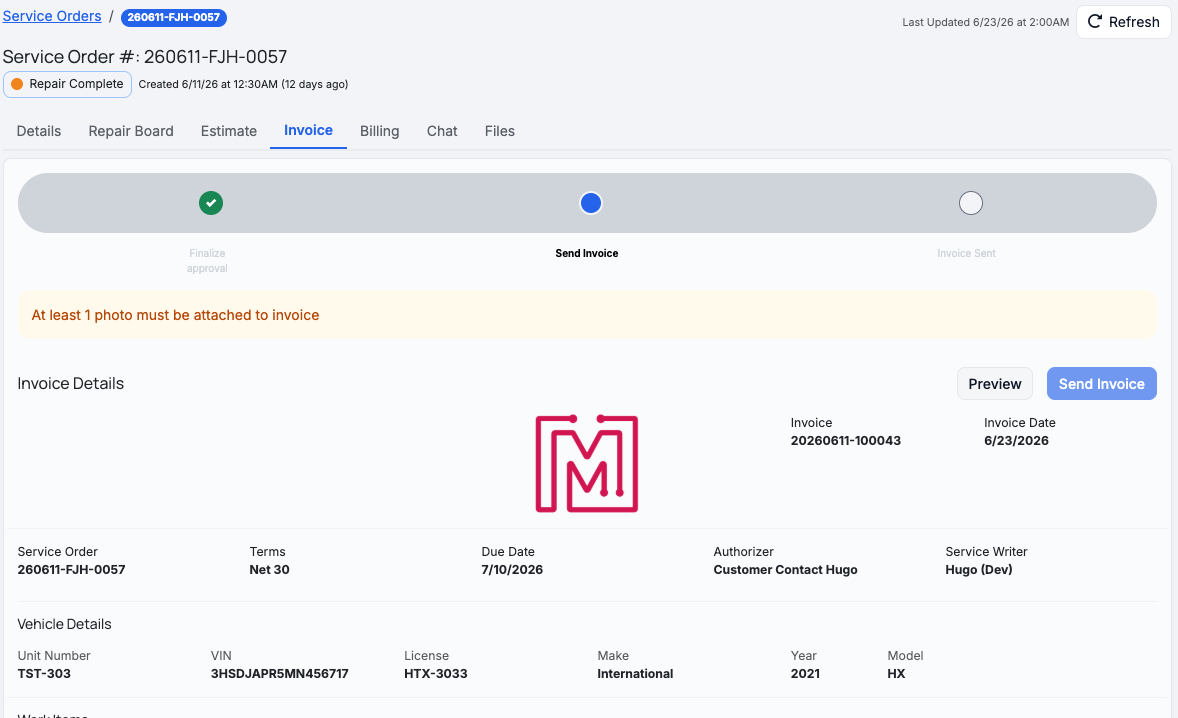
The auto-drafted invoice. Note the prompt: a work-evidence photo is required before you can send.
Attach at least one work photo.
Use Attach Photos to Invoice. The picker shows only work-evidence photos — the pictures the technician took of the actual repair. Until at least one is attached, Send Invoice stays disabled, so every bill carries a visual record of the work.
Preview the invoice.
Click Preview to see exactly what the customer will get — your logo, the Bill To, line items, and totals.
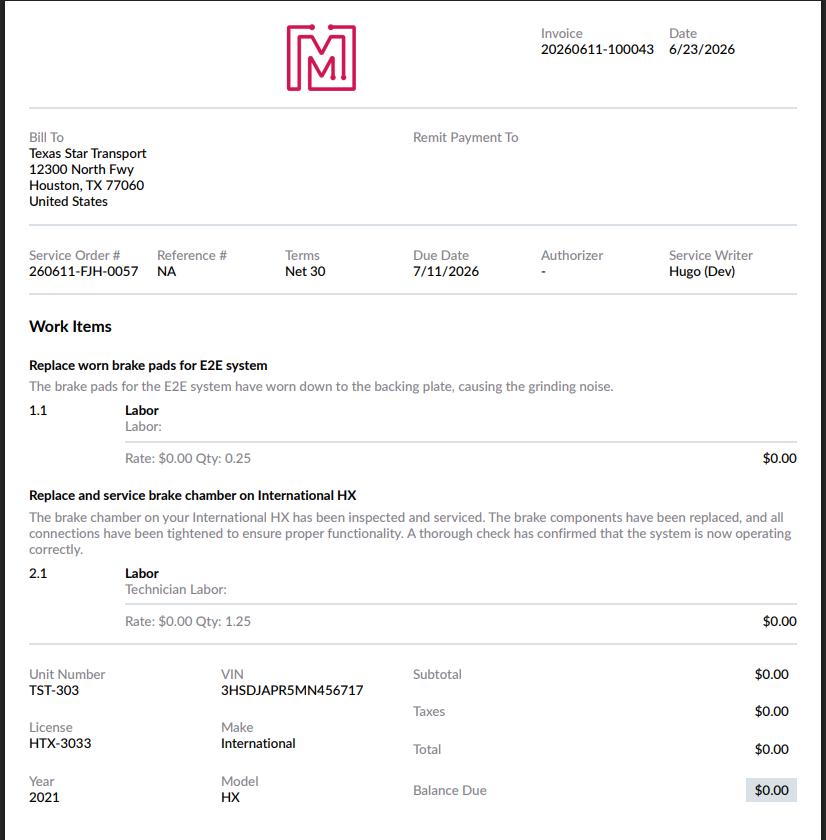
The preview is the customer's copy — check it before sending.
Send it.
Click Send Invoice. The customer receives it, and the order moves to Pending Payment — track it from the Billing tab or the Billing Hub.
If your shop requires manager approval for invoices, the invoice first stops at Finalize approval (the first step on the progress bar). A manager approves it there before it can be sent. See Understanding the Approval Gates.
Parts still short? If a part on the job hasn't been fully sourced when you click Send Invoice, MetaFleet shows a quick sourcing-shortage warning so the send can't quietly dead-end — review the flagged parts, then continue, or go handle the shortage first.
Adjusting the invoice
The Invoice Summary consolidates everything in one place — subtotal, a Fees band, any discount, tax, the total, and the Balance Due after payments.
- Discounts — use + Add Discount in the Invoice Summary.
- Service Fee — if your shop has the tenant-wide Service Fee turned on, it auto-applies here in the Fees band. You can remove it from this one invoice if needed (the removal is logged to the order's activity log). See Build & Send an Estimate for how it's set up.
- Taxes and surcharges roll up automatically based on your settings.
- Invoice History at the bottom logs each send, with who sent it and the totals.
Troubleshooting
| Symptom | Likely cause | Fix |
|---|---|---|
| Send Invoice is greyed out | No work-evidence photo attached yet | Use Attach Photos to Invoice — one work photo is enough. Receipts and vehicle-reference photos don't count. |
| A photo I took isn't in the picker | It's a shop-only photo — a receipt or a vehicle-reference shot (VIN, plate, mileage, damage) | That's expected. Only work-evidence photos can go on a customer invoice. The shop-only photo stays on the job for your records. |
| The invoice is stuck at "Finalize approval" | Manager approval for invoices is on | Have a manager approve it, or turn the gate off in Service Order Settings. |
| There's no Invoice tab content | The order isn't at Repair Complete yet | Finish and approve the repairs first. |
| The total looks wrong | A discount, tax, or line is off | Adjust in the Invoice Summary, or fix the work items on the Estimate tab. |
FAQs
Why is a photo required?
It keeps a visual record of the completed work on every invoice. Send stays disabled until one work-evidence photo is attached.
Which photos can go on the invoice?
Only work-evidence photos — the pictures of the actual repair. Receipts and vehicle-reference photos (VIN, plate, mileage, damage) are shop-only: they stay on the job for your records and never print on the customer's invoice.
Can the customer pay from the invoice?
Yes — once sent, the order moves to Pending Payment and the customer can be collected via your billing flow.
Can I resend an invoice?
Yes — each send is recorded in Invoice History, and you can download past versions there.
Where do I add a discount?
In the Invoice Summary, use + Add Discount before sending.