
Who this is for:
Technicians using the MetaFleet mobile view to:
-
Clock in and show they’re available
-
Accept and manage assigned service orders
-
Complete diagnosis, repair, photos, and wrap-up on the go
What you’ll learn
-
How to clock in so dispatch knows you’re available for jobs
-
How to open and accept a service order from your alerts
-
How to update your status (On Your Way / Arrived On Site)
-
How to review complaint, vehicle details, and work items
-
How to enter diagnoses using typing or voice with AI cleanup
-
How to add parts, labor hours, and finalize your diagnosis
-
How to complete repairs, upload photos, and submit for completion
Before you start
-
You must have an active technician login.
-
Your account should be assigned to at least one service order.
-
Make sure you have a reliable data or Wi-Fi connection on your phone.
-
Confirm you can see the technician dashboard and alert notifications.
-
If your shop uses auto-approval thresholds, know the limits for your jobs.
Quick Summary (TL;DR)
-
Clock in from your technician dashboard so dispatch knows you’re available.
-
Open your new service order from Alerts and review repair details.
-
Tap On Your Way, then Arrived On Site when you reach the unit.
-
Review complaint and work items, then enter diagnosis (typing or voice).
-
Add parts and estimated hours for each work item and submit.
-
Tap Finalize Diagnoses and wait for estimate approval.
-
Once approved, complete repairs, upload photos, and Submit for Completion.
Step-by-Step
-
Open the technician dashboard and clock in
-
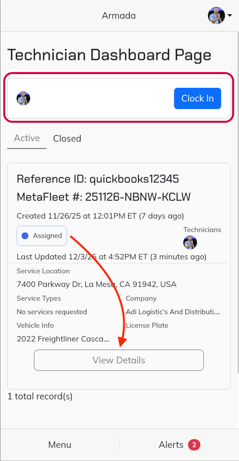
From the mobile view, open your technician dashboard.
-
Tap “Clock In” so your team and AI dispatch know you are available to take jobs.
-
This helps the system match you to jobs based on skills, distance, and availability.
-
-
Watch for new service order alerts
-
After you’re clocked in, you’ll receive a mobile alert when you’re assigned to a new service order.
-
Tap the alert icon (or banner) to open the assigned work order.
-
-
Open the service order from your alerts
-
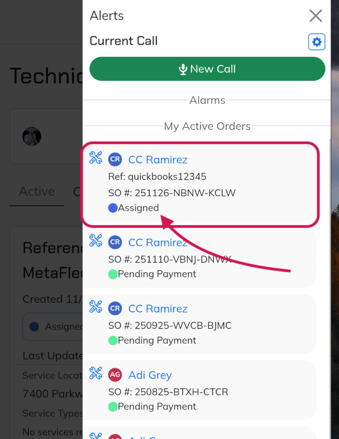 Tap the service order in your alerts list to open the repair board for that job.
 -
You’ll land on the main job screen with repair details, work items, and status at the top.
-
-
Update your status to “On Your Way”
-
When you’re ready to head to the job, tap “On Your Way.”
-
This updates your ETA and notifies dispatch and the customer that you’re traveling to the site—no calls or texts needed.
-
The job status will update to show you’re en route.
-
-
Mark “Arrived On Site” when you reach the unit
-
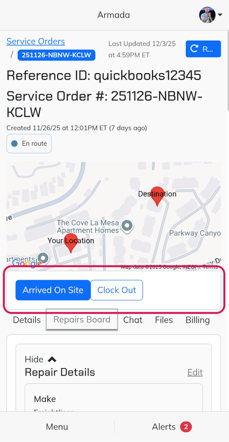
As soon as you get to the customer location, tap “Arrived On Site.”
-
This moves the job into technician diagnosis and notifies your team and the customer that you’ve started diagnosing.
-
-
Review repair details and vehicle information
-
On the job screen, find the “Repair Details” card.
-
Tap the arrow to expand it if it’s collapsed.
-
Review:
-
Vehicle/unit information
-
Complaint description
-
Unit location and parking notes
-
Any instructions or images from dispatch or the customer
-
-
-
Review AI complaint summary and work items
-
Below repair details, you’ll see an AI-generated complaint summary based on what the customer or dispatcher reported.
-
Under that, you’ll see associated work items (issues) already created for this complaint.
-
Each work item will have its own complaint, diagnosis, parts, and labor.
-
-
Add a new work item if needed
-
If you find additional issues during your inspection:
-
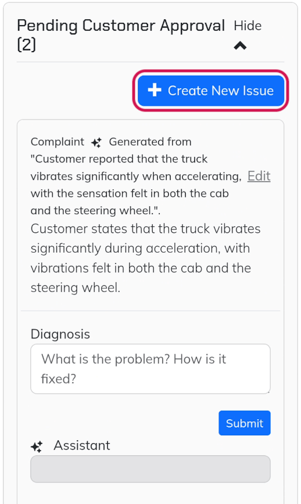
Tap “Create New Issue” (or [VERIFY: “Add Work Item”]) on the repair board.
-
Enter a short description of the new problem.
-
Save the new work item.
-
-
Repeat for as many issues as you discover.
-
-
Start entering your diagnosis (typing or voice)
-
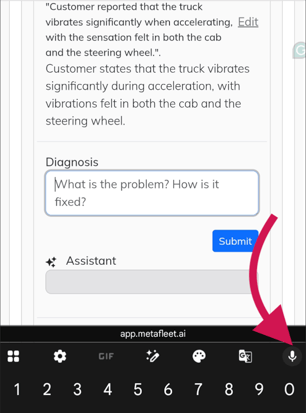
Open a work item and tap into the “Diagnosis” box.
-
You can:
-
Type your diagnosis using the mobile keyboard, or
-
Use the microphone on your keyboard for voice-to-text.
-
-
Speak or type in your natural words—even if it’s shorthand or rough notes. The technician AI will clean it up into a clear, customer-friendly description.
-
-
Review and accept the AI-polished diagnosis
-
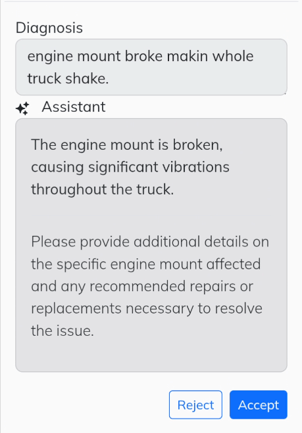
After you enter your notes, the assistant will generate a cleaned-up diagnosis.
-
Review the suggestion to make sure it matches what you found.
-
If you’re happy, tap “Accept” to save it to the work item.
-
If not, adjust your notes and regenerate until it looks correct.
-
-
Add parts to the work item
-
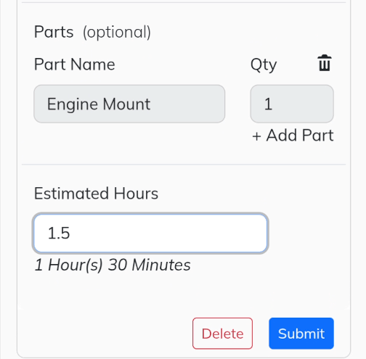
Inside the same work item, tap “Add Parts.”
-
Search through the parts catalog your admin team configured for your shop.
-
Select the correct part(s) and tap “Update” or “Add to Work Item.”
-
Confirm the quantity and pricing look right (if visible to techs in your shop).
-
-
Add estimated labor hours
-
In the work item, find the “Estimated Hours” or labor field.
-
Enter how many hours you expect the repair to take (for example, 1.5).
-
This is still part of diagnosis—you are estimating, not logging actual time yet.
-
-
Submit the work item diagnosis
-
Once diagnosis, parts, and estimated hours are filled out for this work item:
-
Tap “Submit”
-
-
Repeat diagnosis steps for each work item in the job until all issues are covered.
-
-
Finalize diagnoses for the whole job
-
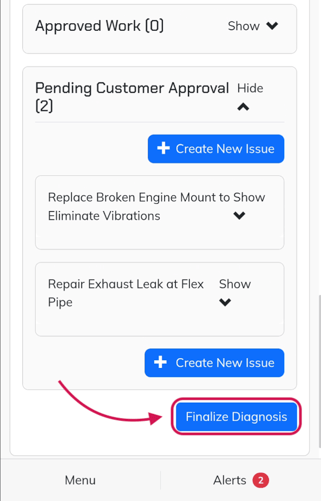
When all work items have diagnoses, parts, and estimated hours:
-
Return to the main repair board for the job.
-
Tap “Finalize Diagnoses.”
-
-
This signals that the estimate is ready for customer or internal approval.
-
Your team and customer will receive notifications that an estimate is waiting.
-
-
Wait for estimate approval (or auto-approval)
-
Depending on your shop settings:
-
Some jobs may be auto-approved if the total is under a set threshold.
-
Others will always require a dispatcher or customer approval.
-
-
You’ll receive a mobile alert when the estimate is approved and you can start work.
-
-
Confirm work items are approved and start repairs
-
Back on the repair board, approved work items will appear as “Estimate Approved” (often highlighted in green).
-
Once you see the approved status, you can start the physical repair work.
-
Perform the repair for each approved work item on the unit.
-
-
Submit repair for each completed work item
-
As you finish each work item:
-
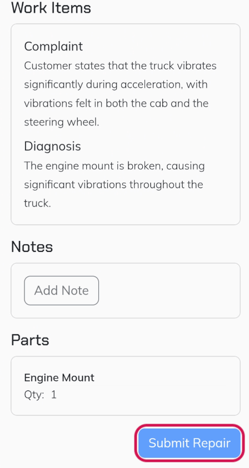
Open the work item.
-
Tap “Submit Repair” to mark your work as completed.
-
-
This tells your team the physical repair is done for that issue.
-
-
Upload required repair photos
-
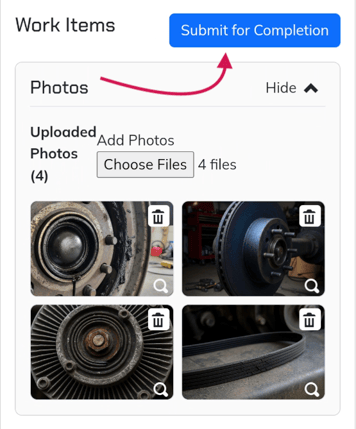
After you tap “Submit Repair,” you’ll be asked to upload at least one photo.
-
Take a clear photo (or several) of the completed repair or relevant components.
-
Wait for the upload to complete—large files may take a moment depending on your connection.
-
Once uploaded, the photo(s) will be attached to the work item for your team and customer to review.
-
-
Submit the job for completion
-
When all work items have been repaired, submitted, and have photos:
-
Return to the top of the repair board.
-
Tap “Submit for Completion”
-
-
This notifies your back office team that the job is ready for invoice review and finalization.
-
-
Dismiss the job and move to the next service order
-
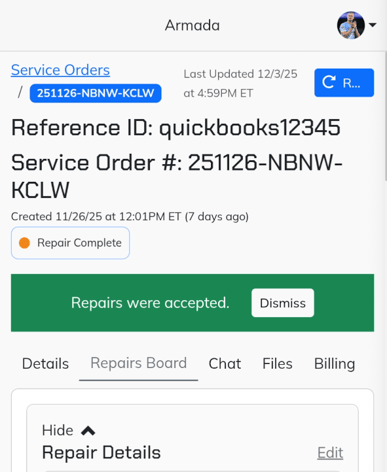
After the invoice is finalized by your team, you’ll see a completion notification on your portal, such as “Repair Complete – You may dismiss.”
-
Tap to dismiss or close the job on your mobile view.
-
Return to your technician dashboard to take on the next service order.
-
Remember to clock out at the end of your shift if your shop uses time tracking.
-
Troubleshooting
| Symptom | Likely Cause | Fix | Prevent |
|---|---|---|---|
| You don’t see any jobs after clocking in | No service orders are assigned to you yet | Confirm with dispatch that a job is assigned to your technician profile and refresh the app | Keep an eye on alerts and confirm your technician user is linked to the right shop and role |
| You can’t tap “On Your Way” or “Arrived On Site” | Job status is not yet assigned to you or already in a later status | Close and reopen the job, or ask dispatch to reassign/change status | Always open the job from your alert and confirm you are the assigned tech |
| Diagnosis won’t save | Required fields (diagnosis text, parts, or hours) are missing | Check the work item for missing diagnosis text, parts, or estimated hours; fill them and try again | Follow a habit: diagnosis → parts → hours → submit on every work item |
| You can’t finalize diagnoses | At least one work item is missing diagnosis details | Review all work items and look for any without diagnosis or estimates; complete them and then tap Finalize Diagnoses | Create a checklist for yourself to confirm each work item is fully filled out before finalizing |
| Estimate never shows as approved | Customer or dispatcher hasn’t reviewed the estimate yet, or notifications are delayed | Check status with your dispatcher; refresh the app or log out and back in | For big repairs, send a heads-up via your internal comms so the office expects the estimate |
| Photo upload gets stuck | Weak mobile data/Wi-Fi or very large image files | Move to a better signal area and retry upload; if needed, reduce photo size/resolution before retrying | Take photos with reasonable resolution and wait for upload completion before navigating away |
| “Submit for Completion” button is missing | One or more work items are not yet submitted as repaired or missing photos | Review each work item and make sure it is submitted with at least one photo attached | Make it standard practice to submit repair + add photo for each work item before trying to complete the job |
FAQs
Can I still work on a job if I forget to tap On Your Way or Arrived On Site?
Yes, but the status and notifications will be wrong. Always try to tap On Your Way when you leave and Arrived On Site when you arrive so your team and customer know what’s happening.
Do I have to use the voice feature for diagnoses?
No. You can type everything manually if you prefer. Voice is optional, but it can speed things up and the AI will help clean up shorthand notes.
What if I realize my diagnosis was wrong after I submitted it?
Update the work item with your corrected diagnosis and notify your dispatcher. Depending on your shop’s rules, they may need to re-approve an updated estimate before you continue repairs.
Do I need to add photos for every work item?
In most cases, yes—at least one photo is required after you submit a repair, and you can add more if helpful. Photos are important for documentation, customer trust, and warranty claims.
What happens if an estimate is over the auto-approval limit?
Those jobs will wait for manual approval by your office or the customer. You’ll see the status change and receive an alert once they approve it. Do not start the repair until you see the job as approved.
Can I work on multiple jobs at once?
You can have multiple jobs assigned, but focus on one at a time. Make sure the correct job is in Arrived On Site and that you submit repairs and photos for each job separately before moving on. Clock in and out of each job as you switch!