
Field technicians working jobs from the MetaFleet mobile app.
What you'll learnWhat's on your dashboard, the two ways a job reaches you, and how to accept and open one.
Your dashboard at a glanceThe dashboard opens to My Jobs — your active work, newest and highest-priority first. Each card shows the unit number, vehicle, status, customer, and location. Up top is your clock; along the bottom are your tabs: Home, Inventory, Notifications, and Profile.
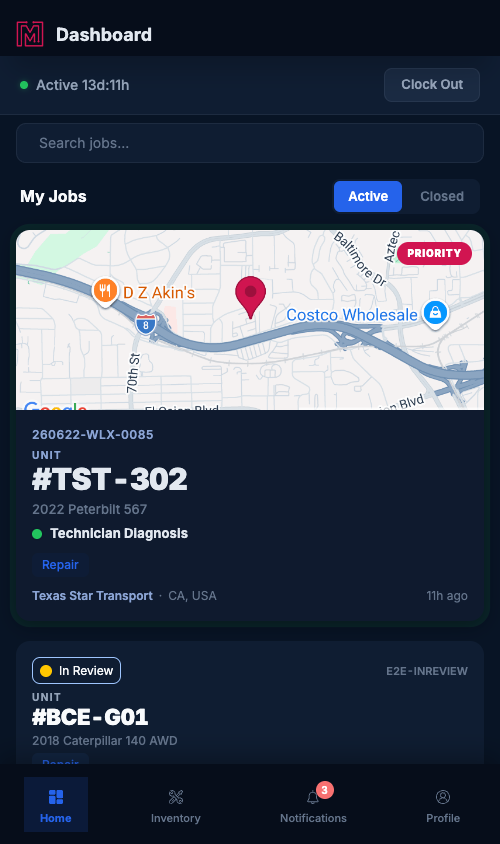
Your dashboard: clock up top, My Jobs in the middle, tabs along the bottom.
- Clock — shows whether you're on the clock and for how long. Tap to clock in or out (see Clock In/Out & Time Tracking).
- Active / Closed — switch between current jobs and finished ones.
- Search jobs — find a job by number, unit, or customer.
- PRIORITY — the job that needs your attention first sits at the top.
Dispatch assigns it to you.
When a dispatcher assigns you a job, it lands in My Jobs and you get a notification. Nothing to accept — it's yours.
…or the system offers you a nearby job.
If auto-assignment picks you, a job offer rises on your dashboard with a countdown. Tap Accept to claim it (it moves into My Jobs), or Snooze to set it aside — it'll pop back up before the timer runs out. If you don't take it in time, it goes to the next tech. If you haven't responded as the countdown winds down, MetaFleet sends a push notification to your phone to remind you before the offer lapses — so you won't miss it even if the app is in your pocket.
Track it all in Notifications.
Your Notifications tab logs every "New job available" offer and "New job assigned," plus status updates as the job moves — estimate approved, cleared to repair, you're released.
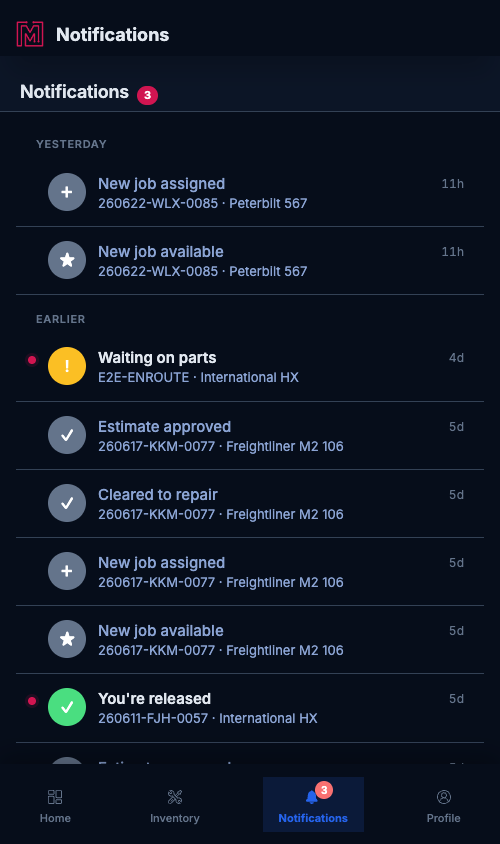
Notifications: job offers, assignments, and status changes in one feed.
Open a jobTap any card in My Jobs to open the service order — from there you clock in, capture vehicle info, run the diagnosis, and submit repairs. Those steps each have their own guide.
Pricing stays off your screen. The tech view never shows dollar amounts — estimates and invoices are for the office. You focus on the work.Troubleshooting
| Symptom | Likely cause | Fix |
|---|---|---|
| "No active jobs" | Nothing's assigned to you yet | Your dispatcher will assign work when it's ready — keep an eye on Notifications. |
| A job offer disappeared | The countdown ran out | It rerouted to another tech. Ask dispatch to reassign it if you want it. |
| I can't find a job I finished | It's no longer "active" | Switch My Jobs to Closed. |
| The offer never showed up | You were off the clock or out of area | Offers only go to clocked-in techs near the job. Clock in to receive them. |
Do I have to accept every offered job?
No — you can Snooze it, or let the timer pass and it goes to the next tech.
What's the difference between "available" and "assigned"?
"Available" is an offer you can accept; "assigned" means dispatch already put it on your list.
Will my phone alert me if I miss an offer?
Yes. If you haven't responded to a job offer as the countdown runs down, MetaFleet sends a push notification to your phone before the offer lapses — a reminder to take it or pass. You'll get it even if the app isn't open.
Where do my finished jobs go?
Under My Jobs → Closed.
Why don't I see prices?
By design — the tech app keeps dollar amounts off your screen.